
USB headsets with microphones are recommended for most Avant language assessments. Other audio setups may require additional preparation or configuration.
Headset Preparation
Antes de realizar las pruebas, un representante de IT debería configurar los auriculares para cada computadora, lo cual puede ser tan simple como conectar el auricular USB.
Use the Verificación de Tecnología Avant to verify that audio playback and microphone recording work correctly.
El Coordinador de Pruebas debe asegurarse de que los auriculares estén conectados antes de la prueba, y que los examinados sepan cómo usar los controles en línea del auricular (si están disponibles).
If You Can’t Hear Audio
If you cannot hear test audio, use the steps below to identify the problem.
1. Play Test Sound
Play this short sound file. If you do not hear anything, continue with the steps below.
2. Check the Headset
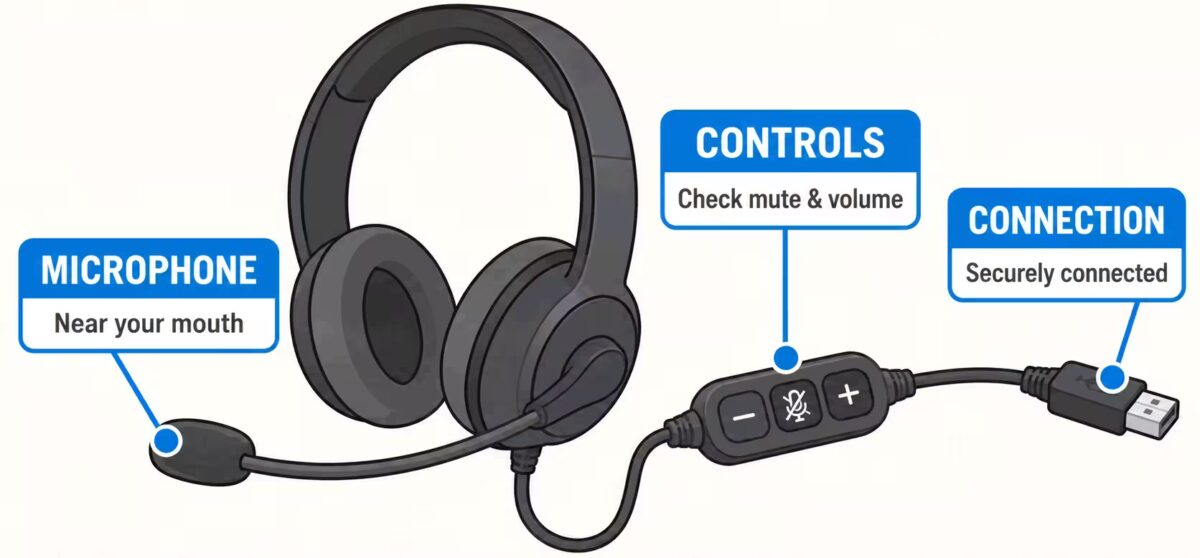
- Make sure the headset is plugged in securely.
- Unplug and reconnect it once.
- If the headset has a mute switch or in-line controls, make sure it is not muted.
- If the headset has its own volume controls, make sure the volume is turned up.
3. Make Sure the Correct Headset Is Selected
Even when a headset is connected, your computer may still send sound to its built-in speakers or another device. Open your computer’s sound or audio settings and look for Output, Speakers, or Headphones. Select your headset, make sure it is not muted, then play the test sound again.
If you need help finding these settings, choose your operating system below.
Mac OS Instructions
1. Open System Settings → Sound.
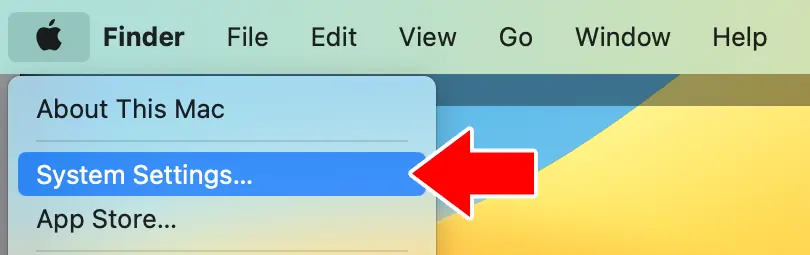
2. Select the headset under Output.
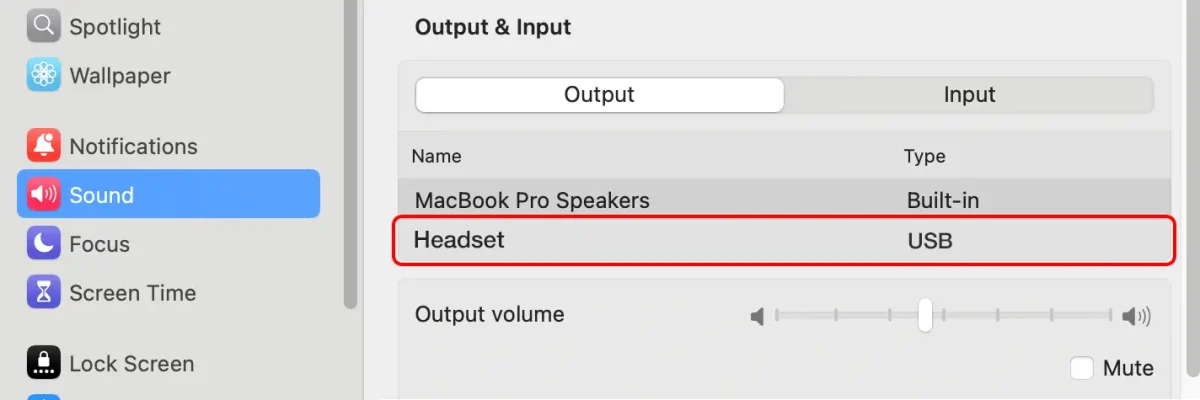
3. Confirm the output volume is not muted.
Windows Instructions
1. Open Sound Settings.
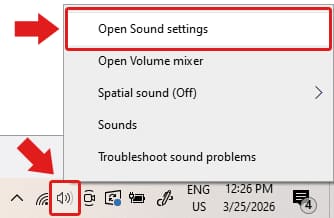
2. Under Output, select your headset.
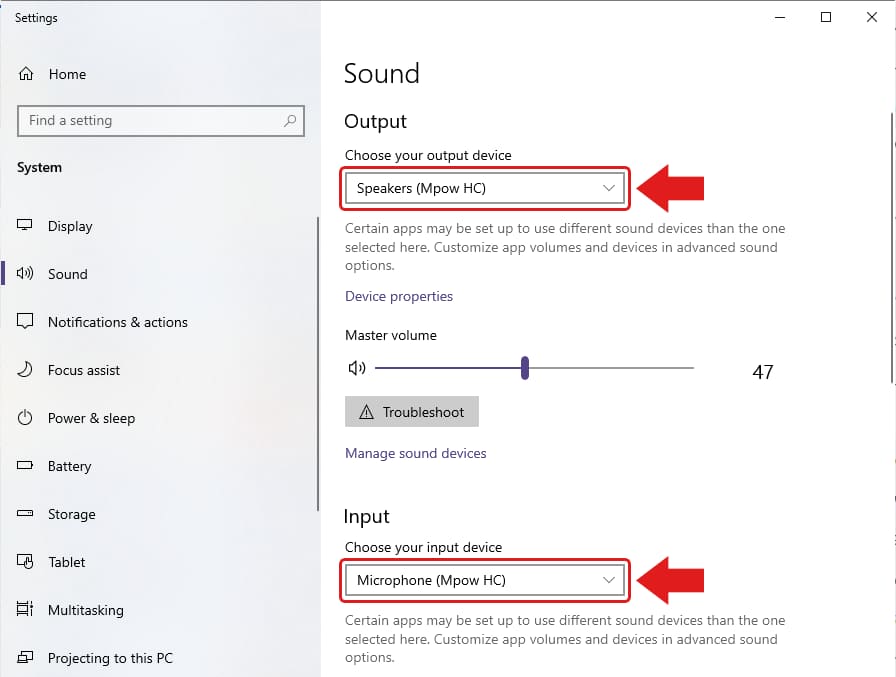
3. Play a sound and confirm audio comes through the headset.
If the Microphone Isn’t Recording
During a Speaking response, the recording indicator should move as you speak. After recording, you should also be able to play back your response. If the indicator does not react to your voice or you cannot hear your recording, work through the checks below.
1. Allow Microphone Access
If your browser asks for permission to use the microphone, select Allow.
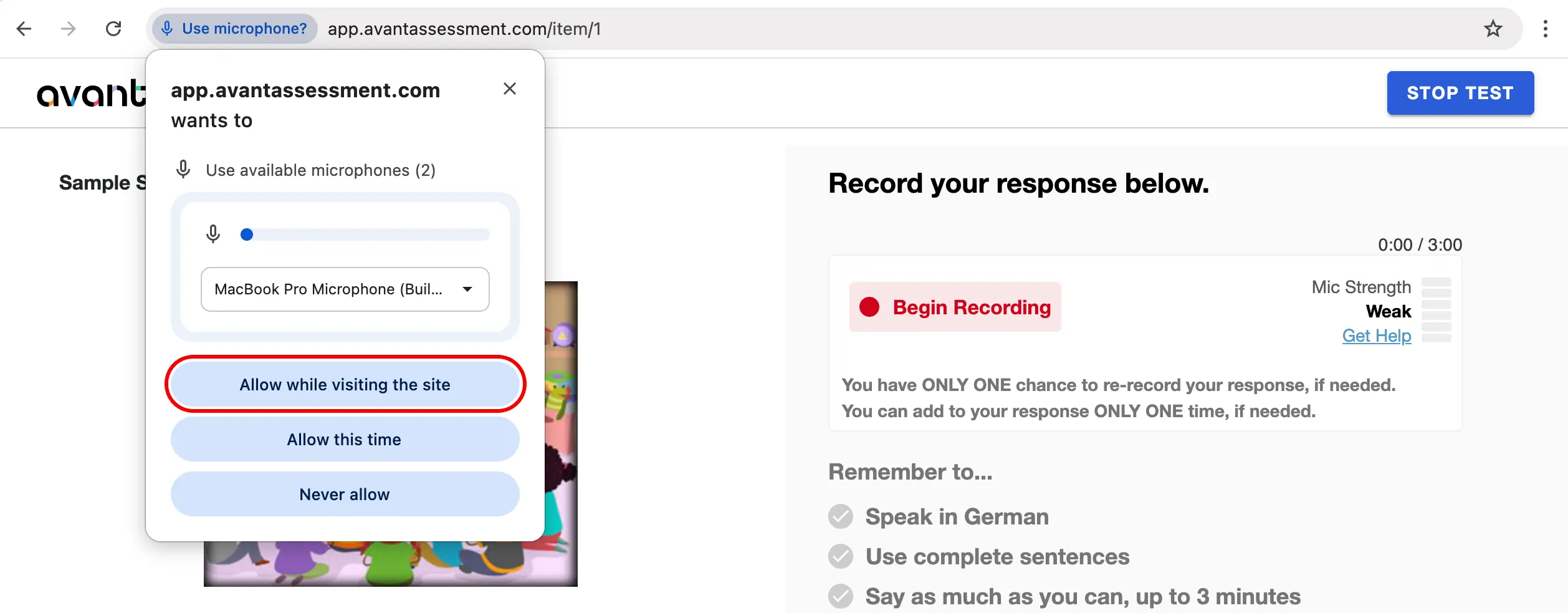
If the permission prompt does not appear, check whether microphone access is already blocked. This setting is usually available from an icon or control to the left of the browser’s address bar. See the browser-specific instructions below.
Ideally, you should check microphone permissions before testing begins. Changing browser permissions during a test may trigger Avant’s security warning because the system detects clicks outside the testing area, but you will receive a warning before being logged out, so this can still be changed if needed.
Chrome Browser
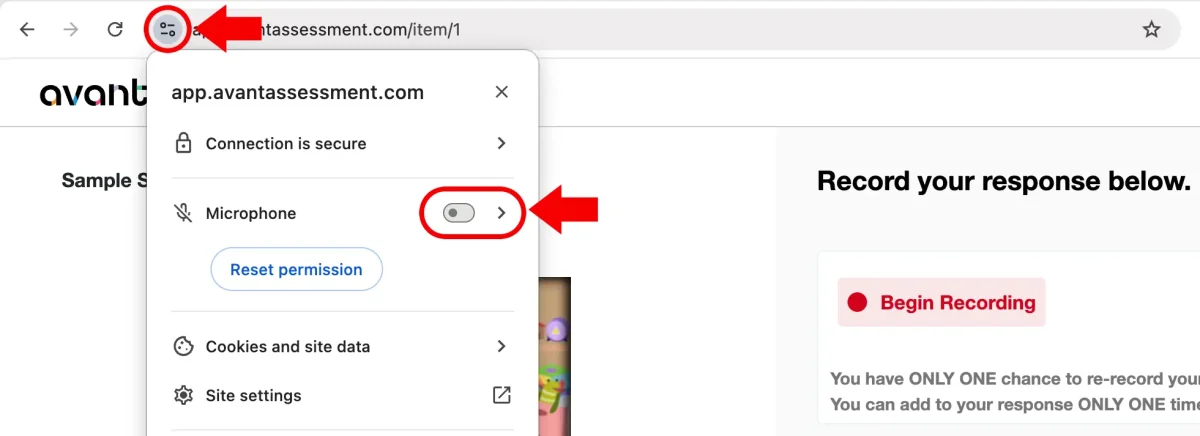
Click the icon to the left of the address bar. If microphone access is turned off, turn it on.
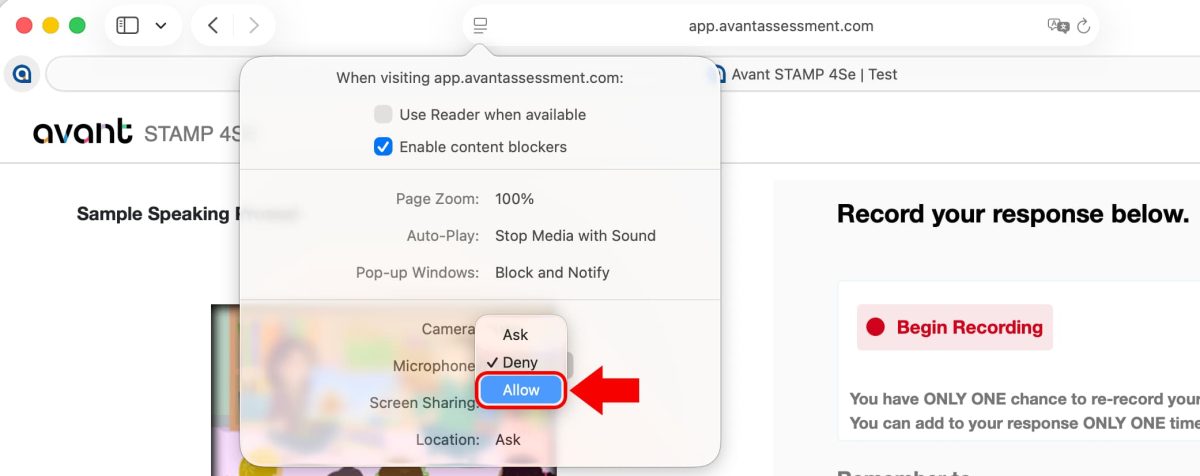
Safari Browser
On iPad or Mac, click the icon to the left of the address bar and select Website Settings.
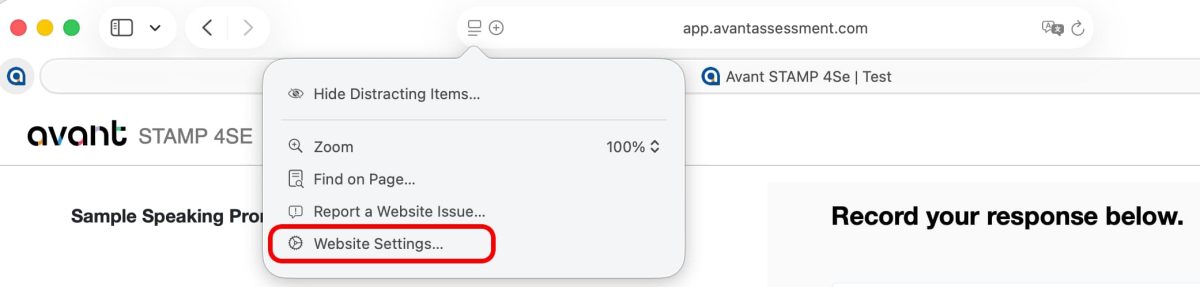
Set microphone access to Allow.
2. Check the Microphone
- Make sure the correct microphone or headset is selected as the computer’s input device.
- If the headset has a mute switch or microphone controls, make sure the microphone is not muted.
- Speak normally and watch the recording indicator. It should move as the microphone detects your voice.
- If possible, test the microphone in another application to confirm that the computer is receiving audio.
If you are using a built-in microphone instead of a headset, reduce background noise, speak clearly toward the device, and avoid covering the microphone.
Recording Too Quiet?
If the microphone is working but the recording level is too low, you may need to adjust the microphone input level.
Configuración del Micrófono de Mac
- Abre tus “Configuración del Sistema“. (Haz clic en el icono de Apple y elige "Configuración del Sistema...")
- Haz clic en “Sonido” en el menú de la izquierda
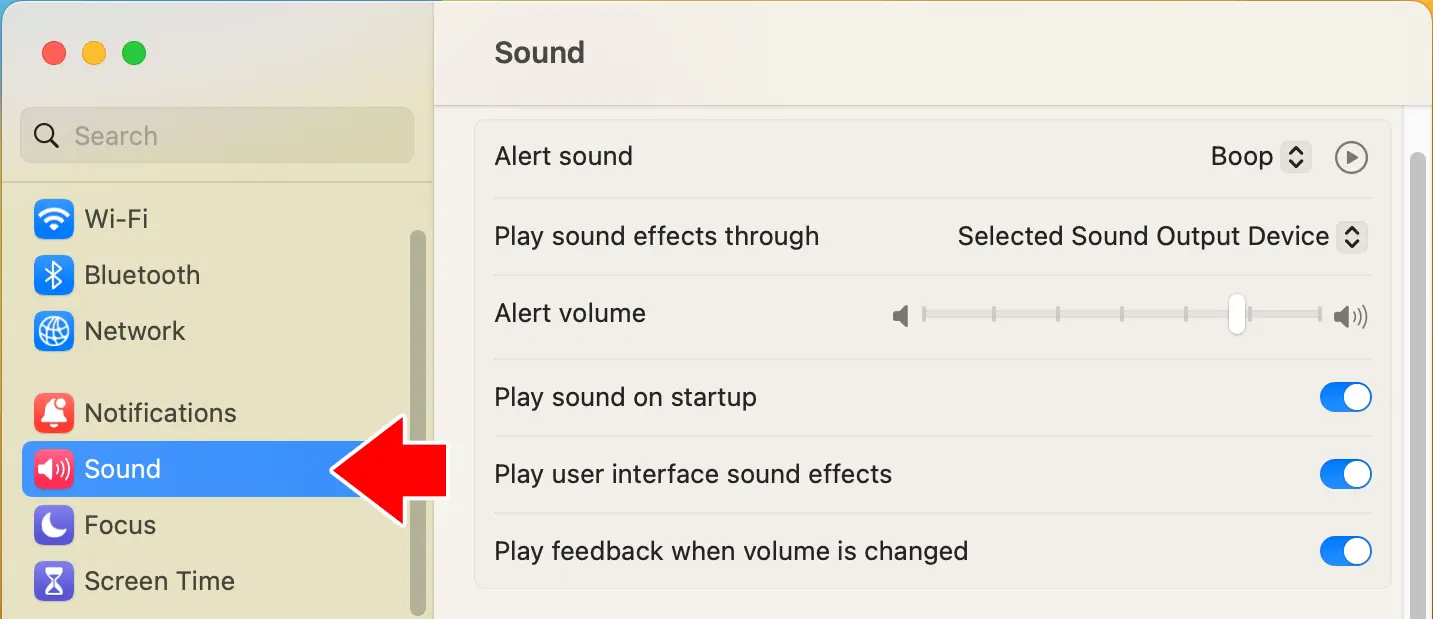
- Haz clic en “Input” bajo “Output & Input”
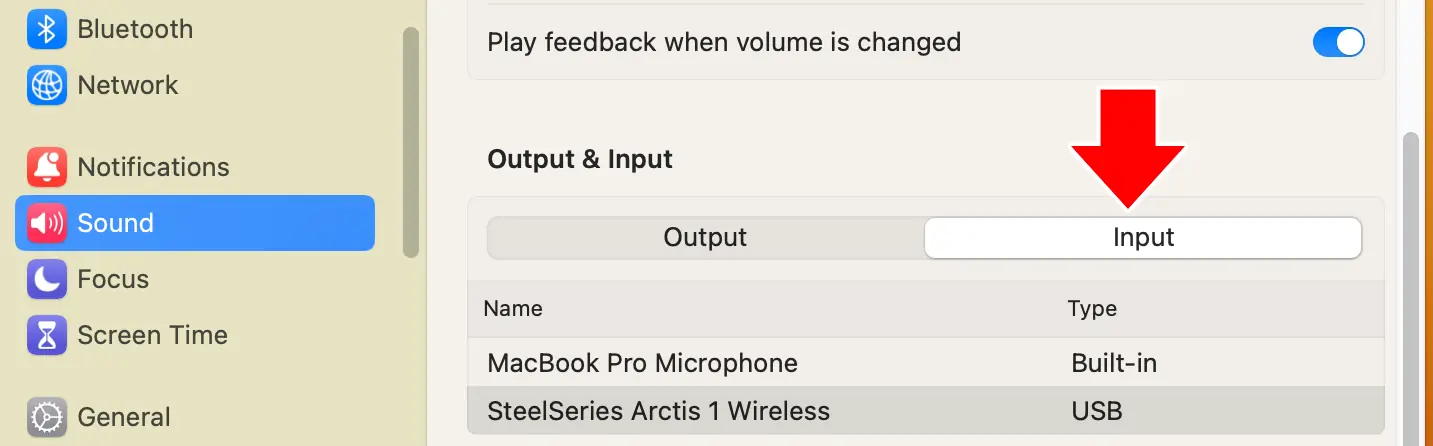
- Haz clic en el auricular adjunto para asegurarte de que es el dispositivo de entrada activo (no se recomienda usar el Micrófono Interno en un entorno de laboratorio).
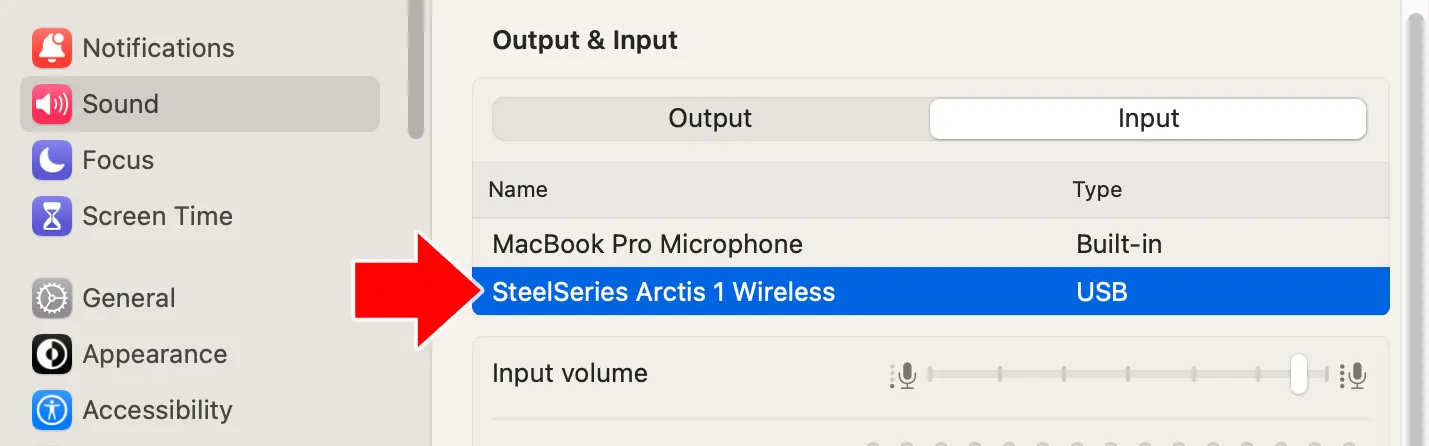
- Ajusta el deslizador de "Volumen de entrada" hasta que el nivel de entrada muestre movimiento durante el habla normal con el micrófono a una distancia apropiada del altavoz.
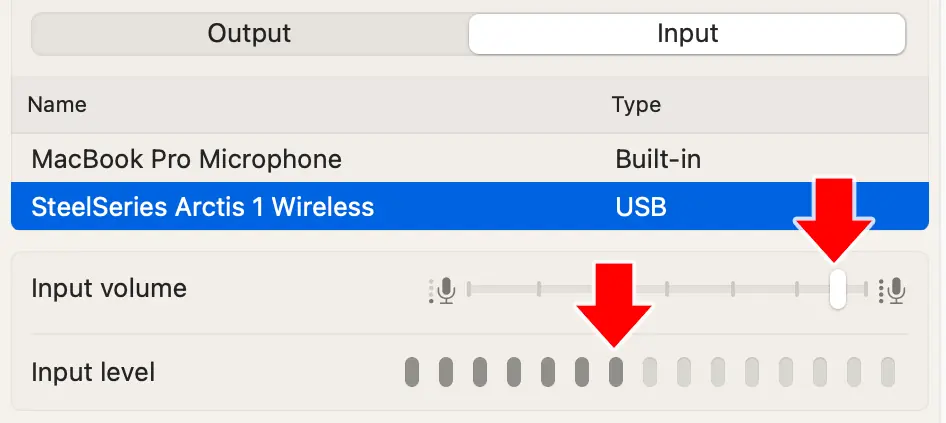
Configuración del Micrófono de Windows
1. Right-click the Audio icon (in the bottom-right of your screen) and choose “Open Sound Settings” from the context menu.
2. Click the “Choose your input device” dropdown, under “Input”. Choose your desired headset.
3. Click “Device Properties” below the input device dropdown.
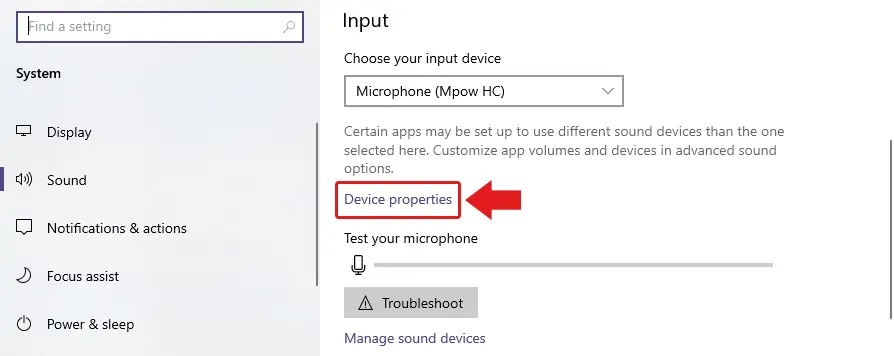
4. Click “Start Test” to test your microphone levels. Adjust the slider as needed.
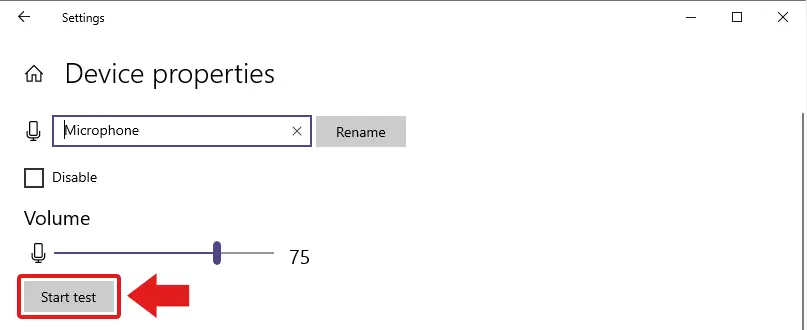
Ajustando los Niveles del Micrófono en Chrome OS
Microphone sensitivity cannot be adjusted in ChromeOS. If recording levels are too low, try another microphone or headset, move closer to the microphone, speak more clearly, or reduce background noise.
If Problems Continue
- Refresh the page or close and reopen the browser.
- Try another supported browser.
- Try another headset or computer.
- Contact your technical support team or Avant Support.