
Access Test Results
Log into the Results Report
To log into your report do the following:
- Go to https://app.avantassessment.com/login.
- Enter the Test Code and password provided by Avant Assessment.
- Click LOG IN button.
To see how to access the Results Report via Умный or ClassLink, go to the Интеграции page.
District & School Overview Screens
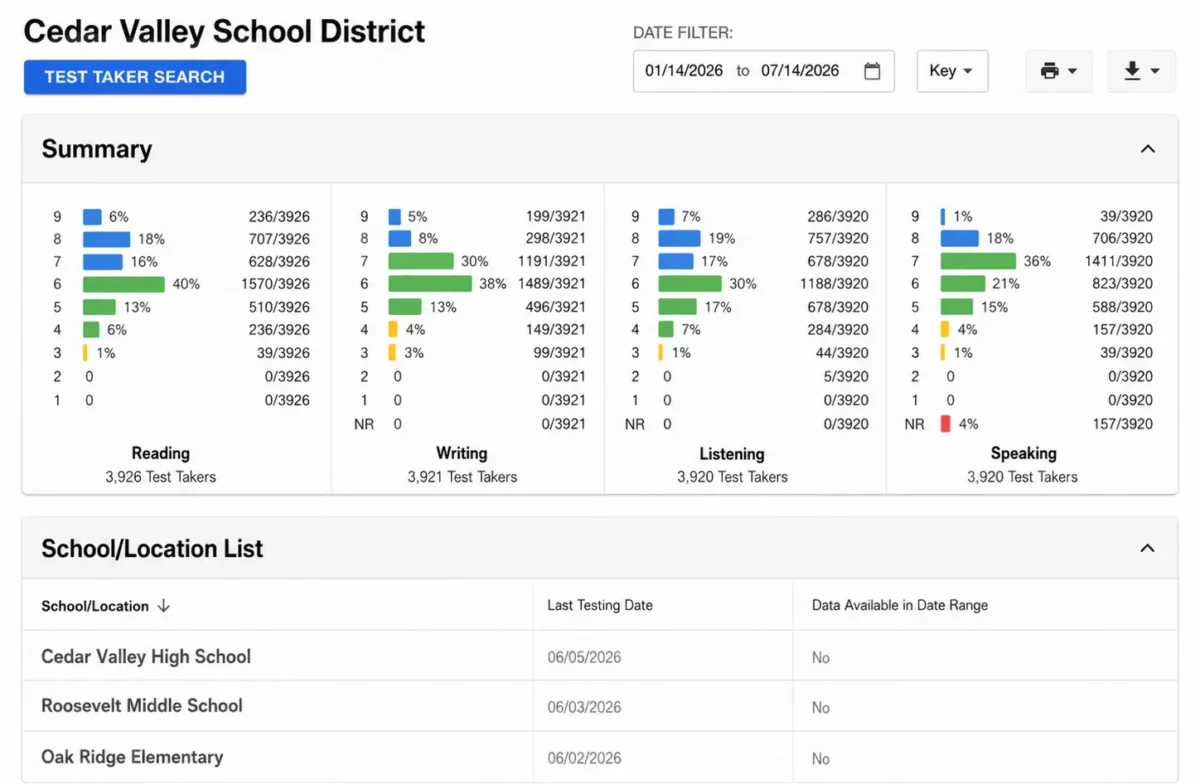
If you are district or school administrator will see a screen showing summary charts and a list of schools or classes. Click on a school or class to drill down and see information pertaining to that class.
Class Level Overview Screens
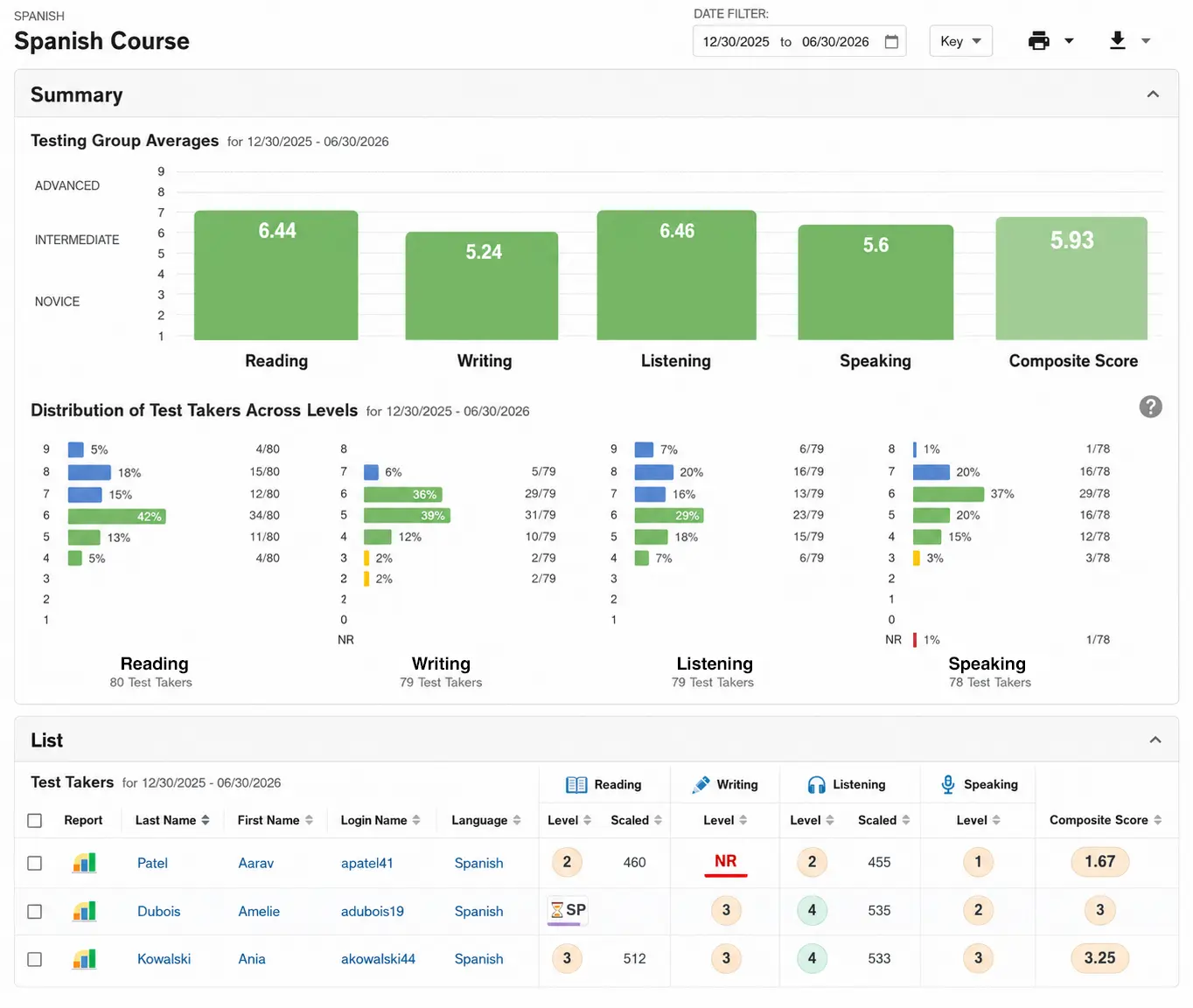
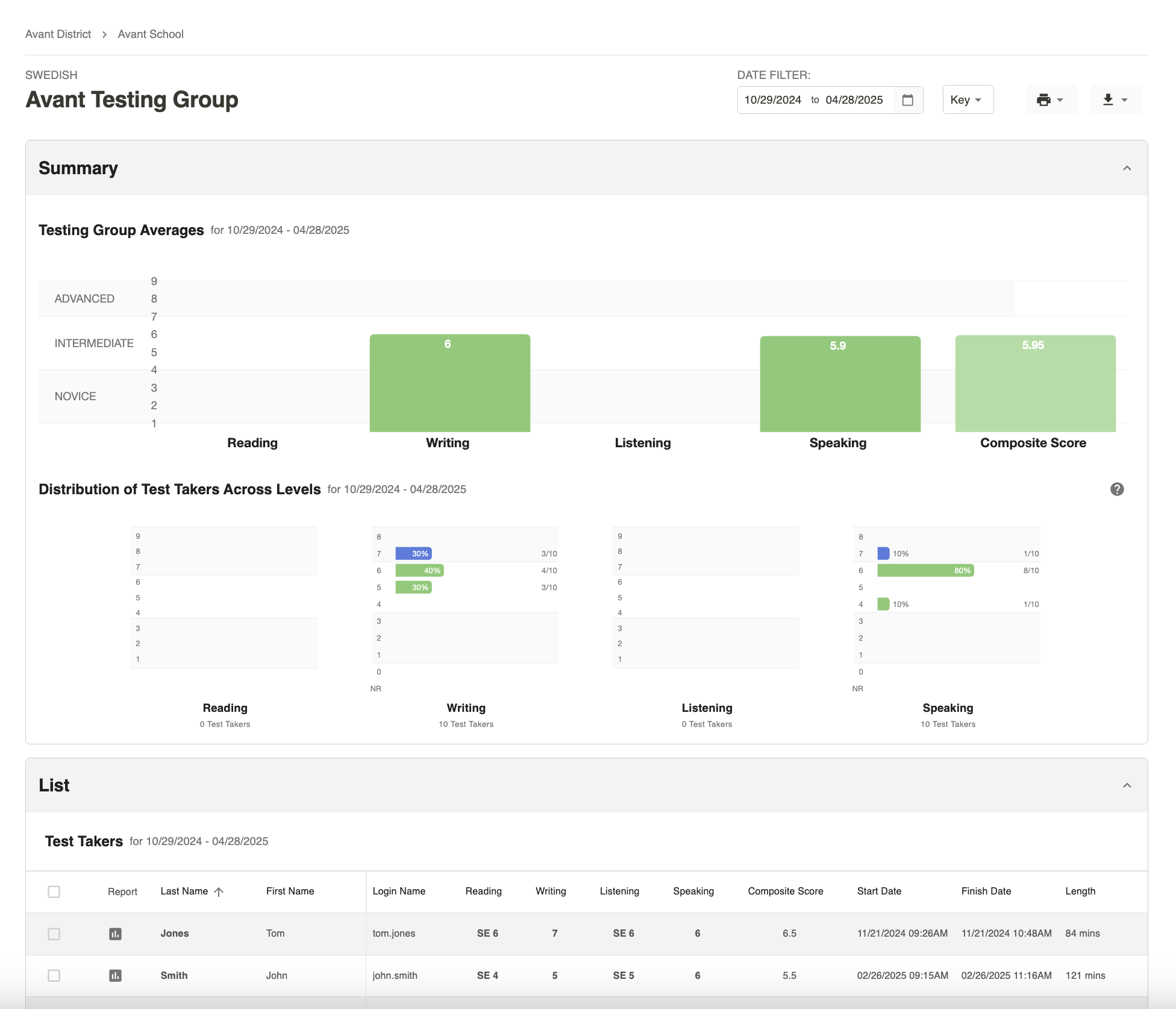
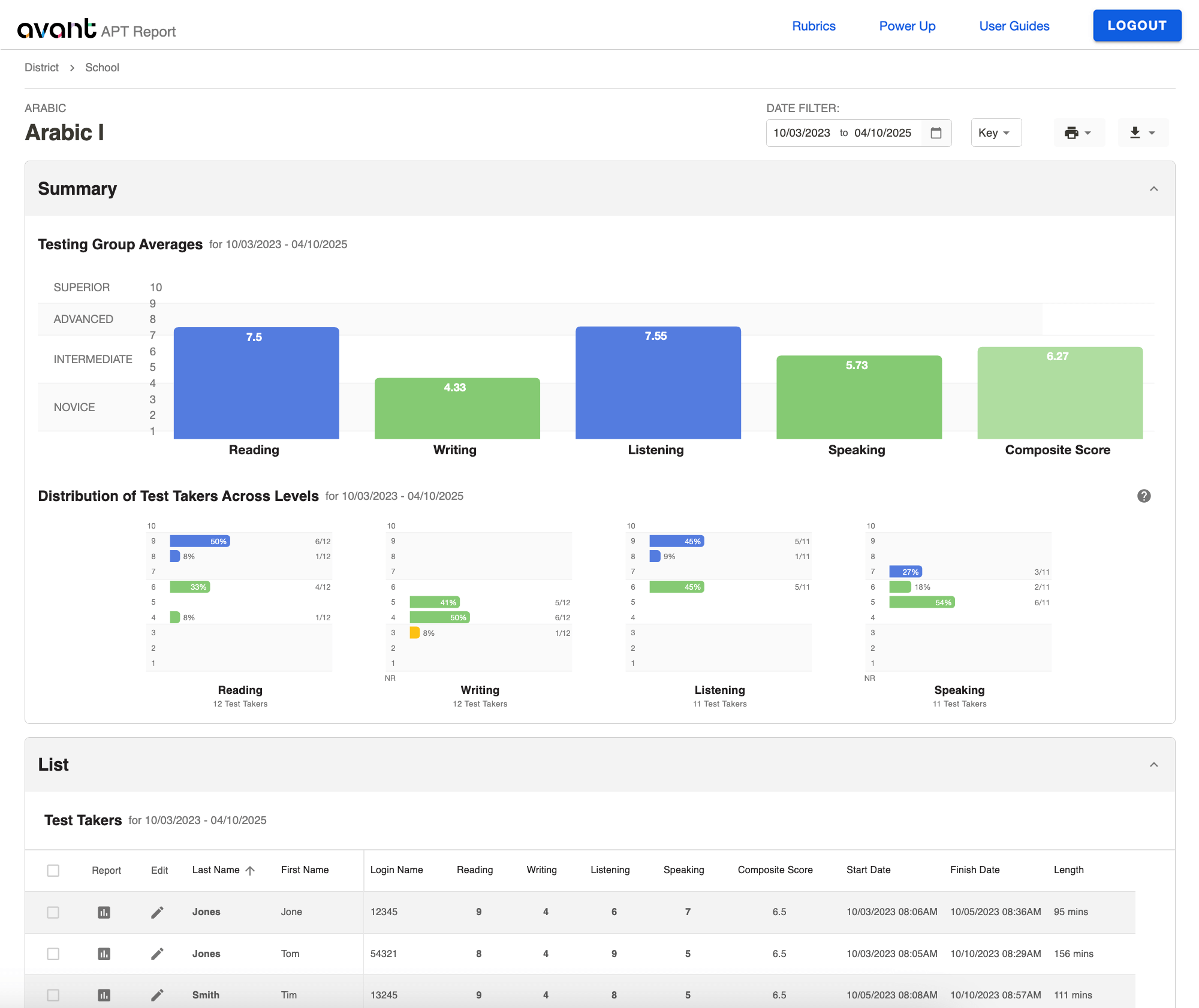
The class overview screen will show you a summary chart at the top, followed by a list of students. Click the “Report” icons to view individual reports. Click a name to see details about responses.
Test Taker Search
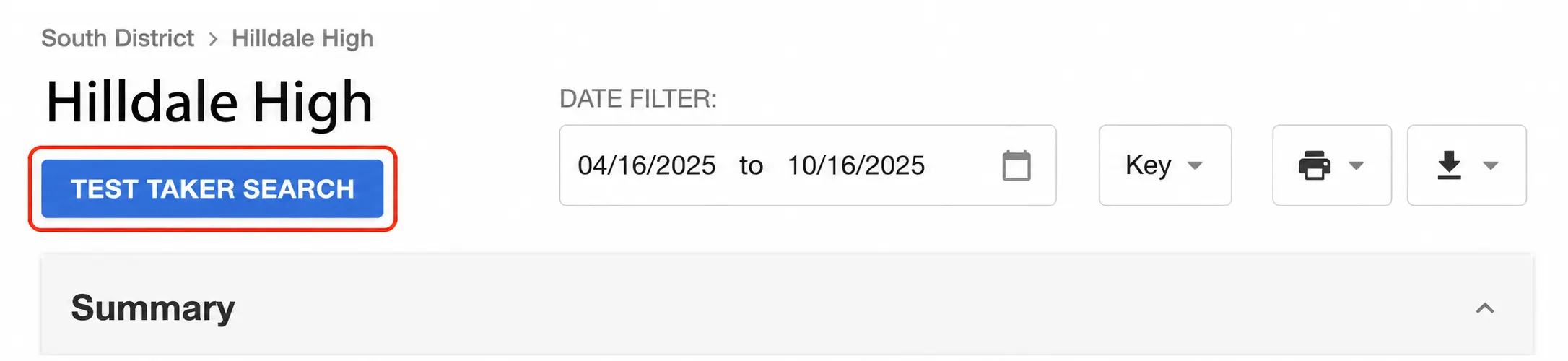
District and School admins can search for students by clicking the “Test Taker Search” button on District or School report screens.
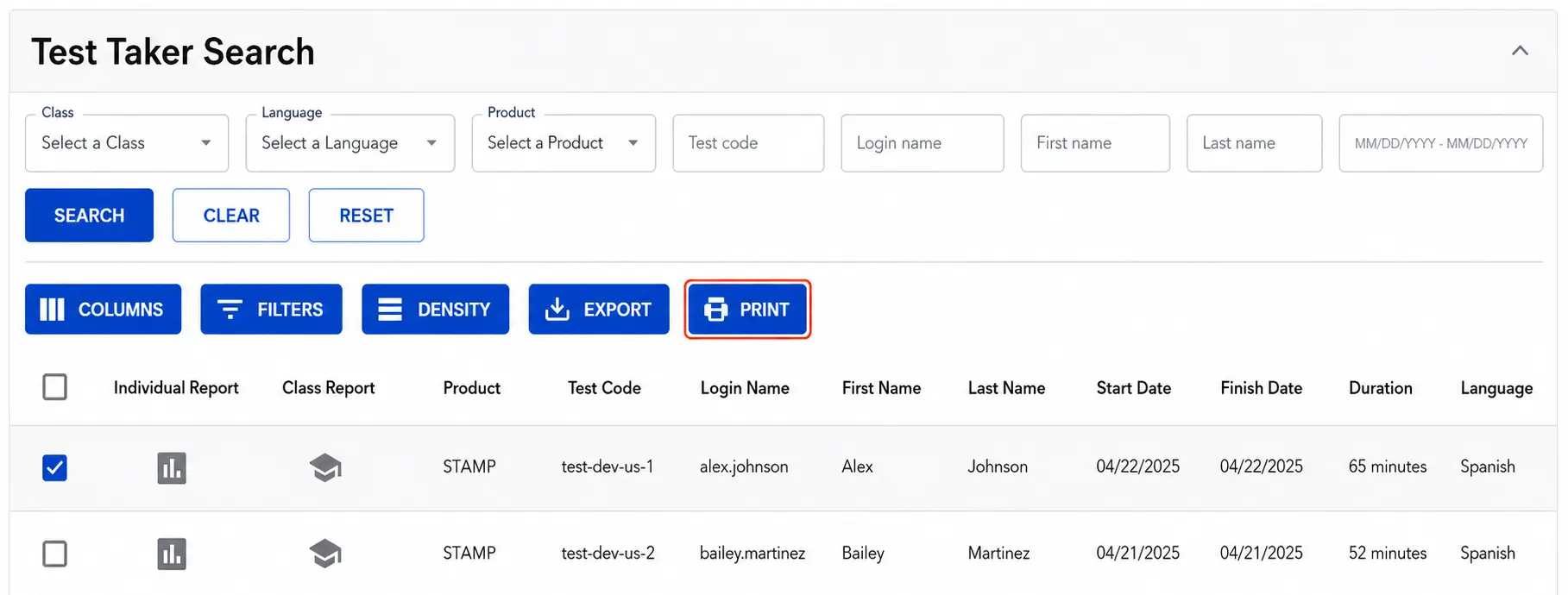
The Test Taker Search feature includes a set of filters such as “Language“, “First name“, “Last name” and “Date Range“. Click “Search” to see all test takers that match your filters.
To print reports check the box for each test taker you want to print and then click “Print“.
Note: By default, Date Range is set to Last 24 Months. Select another preset or choose Custom Range… to search a different period. If an expected test taker does not appear, expand the date range or select Clear Filters.

Date Filter
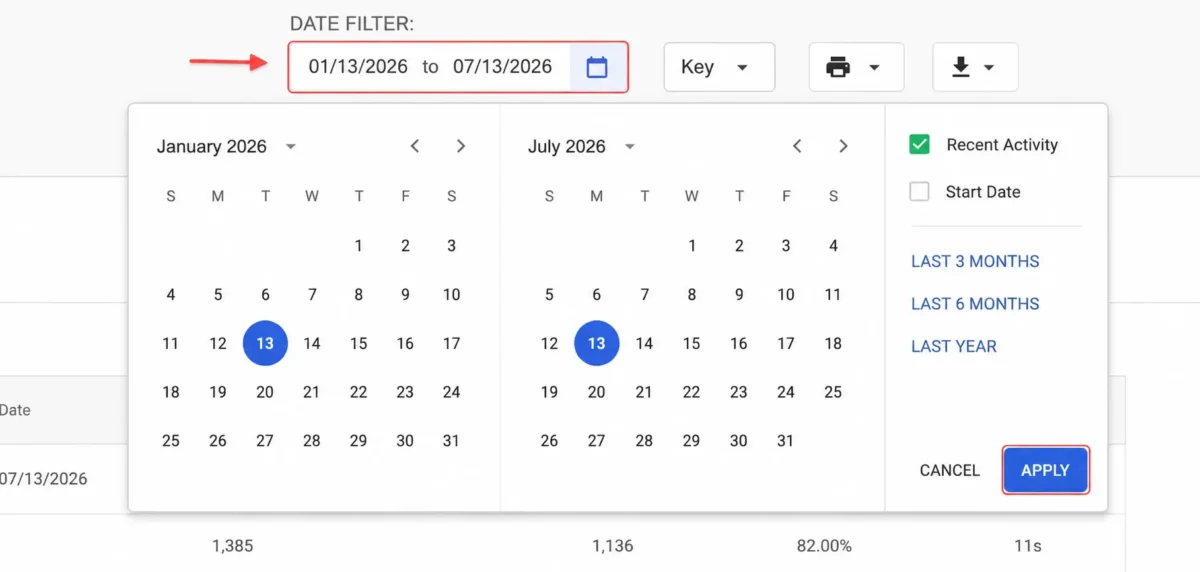
By default, the Date Filter shows test results from the last 6 months.
To select a different time frame, type the date or click on the calendar. Then, click APPLY. There are also presets that can be selected to show the Last 3 Months, Last 6 Months, and Last Year of testing. The Date Filter can also be modified to search by Start Date or Recent Activity.
Monitor Test Progress
Testing Coordinators can use reports to:
- Confirm a test taker’s Login Name
- Monitor testing status and progress
- Review scores and results
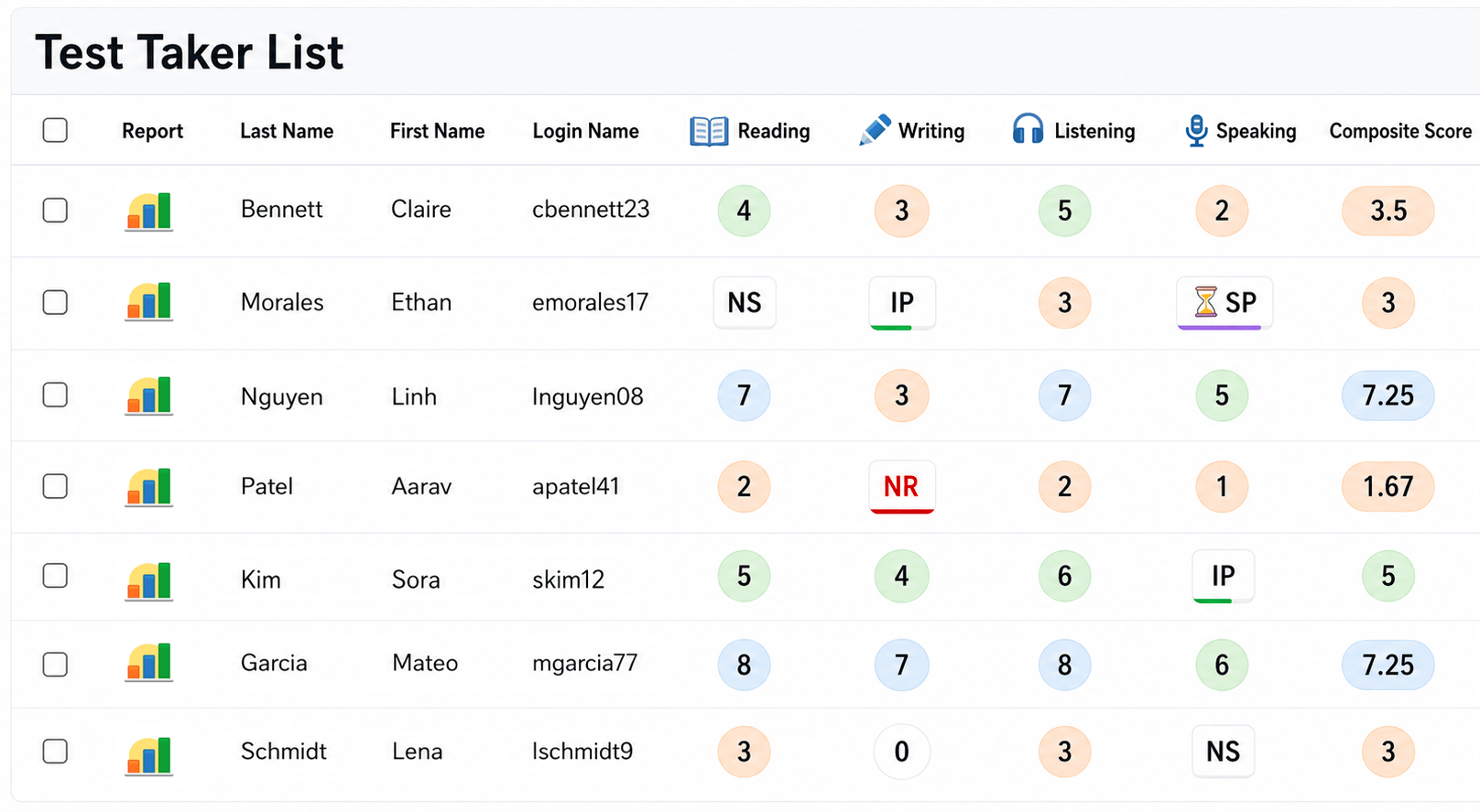
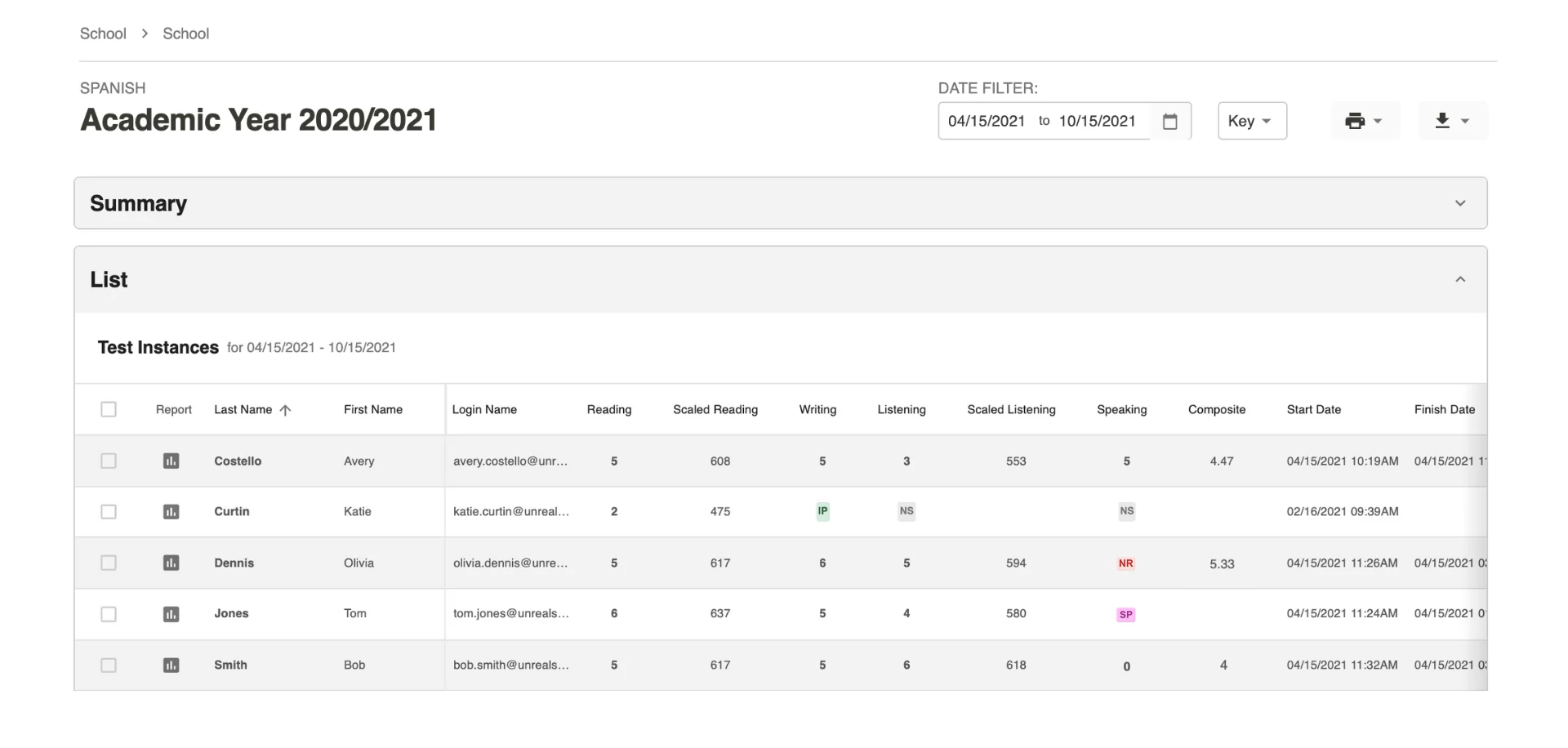
Test Scores and Status
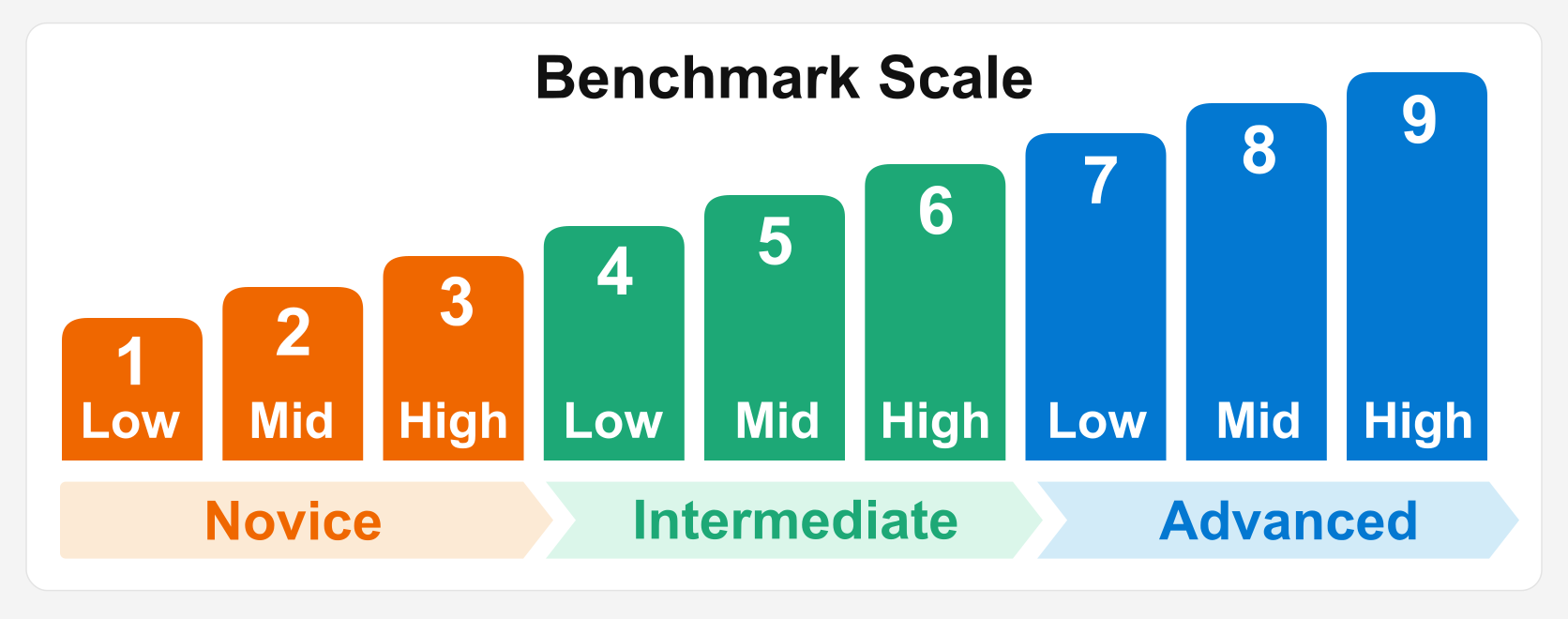
Benchmark Levels are grouped by major levels (Novice, Intermediate and Advanced). Within each major level are three sub-levels (low, mid, high) that are aligned to national proficiency standards as shown below.
Statuses

The test taker has not started this section of the test. If all sections are marked NS the test taker has completed only the Profile.

The test taker has started, but not completed, this section of the test. For the Writing and Speaking sections, click the IP to see how many responses have been submitted.

This section of the test is complete, but the rating is not complete for one or more responses. Click the SP to see how many responses have been rated.

Writing, Speaking, or Expressive sections will have the status NR (Not Ratable) if a rater is not able to rate any of the responses in the section. See possible reasons for NR (Not Ratable) status.

As the STAMP test is increasingly used for higher-stakes purposes (such as awarding credit or the Seal of Biliteracy), Avant has increased the rigor of our rating process. A ZERO score is assigned when a response cannot be rated for proficiency because it does not contain rateable language.
This may occur due to the following reasons: No Attempt, Non-Target Language, Gibberish, Off Topic content, Violence/Profanity, or a Testing Rules Violation (such as using outside resources).
Review Test Results
Reading and Listening Section Scores
Reading and Listening scores are available as soon as test takers complete those sections (refresh the page for updates).
Self-Evaluation Reading and Listening Sections Scores
The Avant STAMP WS and SuperLanguage are semi-adaptive tests.
Test takers will be asked to answer 7 self-evaluation questions that best represent their skill/ability level in both the Reading and Listening sections.
The self-evaluated reading score is used to determine the level of prompt delivered for the writing section. The same applies for the listening self-evaluation related to the speaking prompts. This allows the language productive sections to be more appropriately leveled for the test taker.
Refer to the STAMP Руководство по самооценке WS or SuperLanguage Self-Evaluation Guide for more information regarding the type of questions in this section.
Scaled Scores
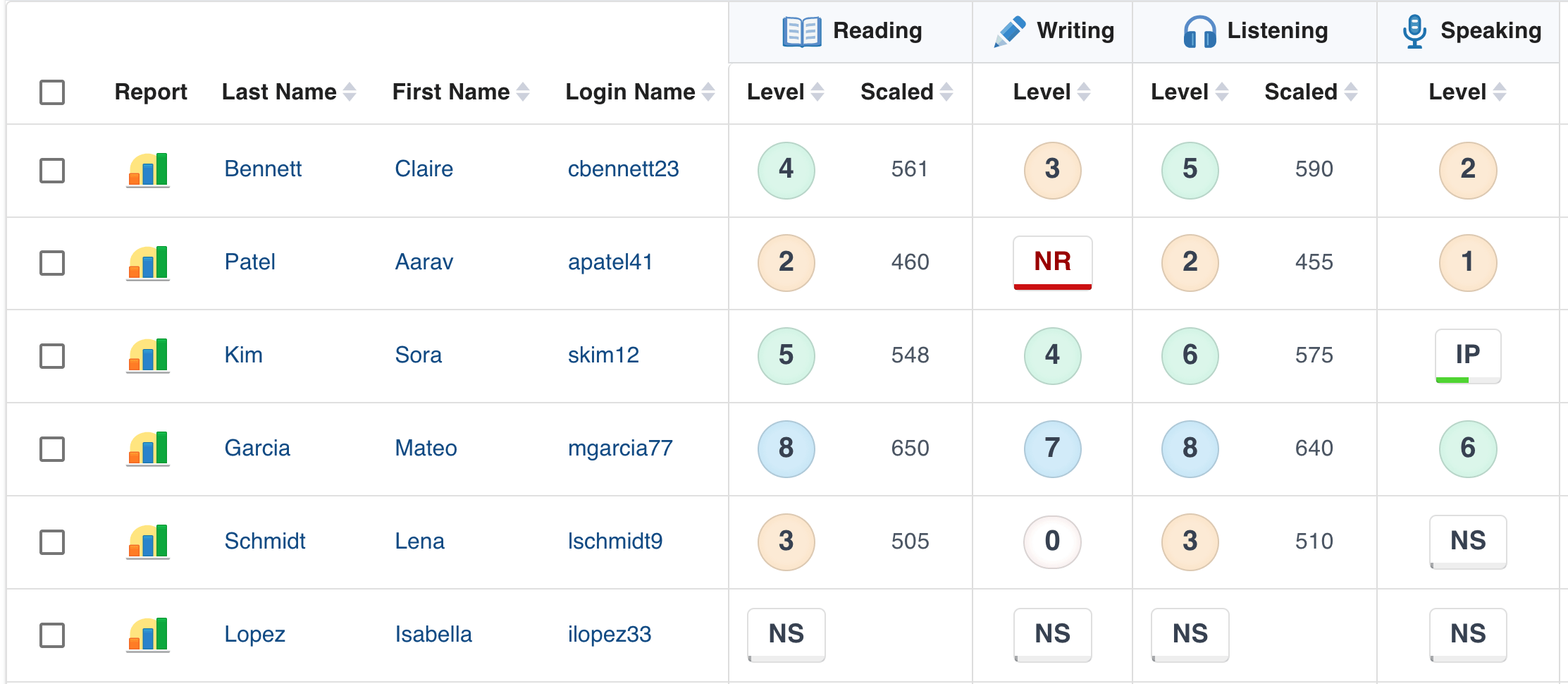
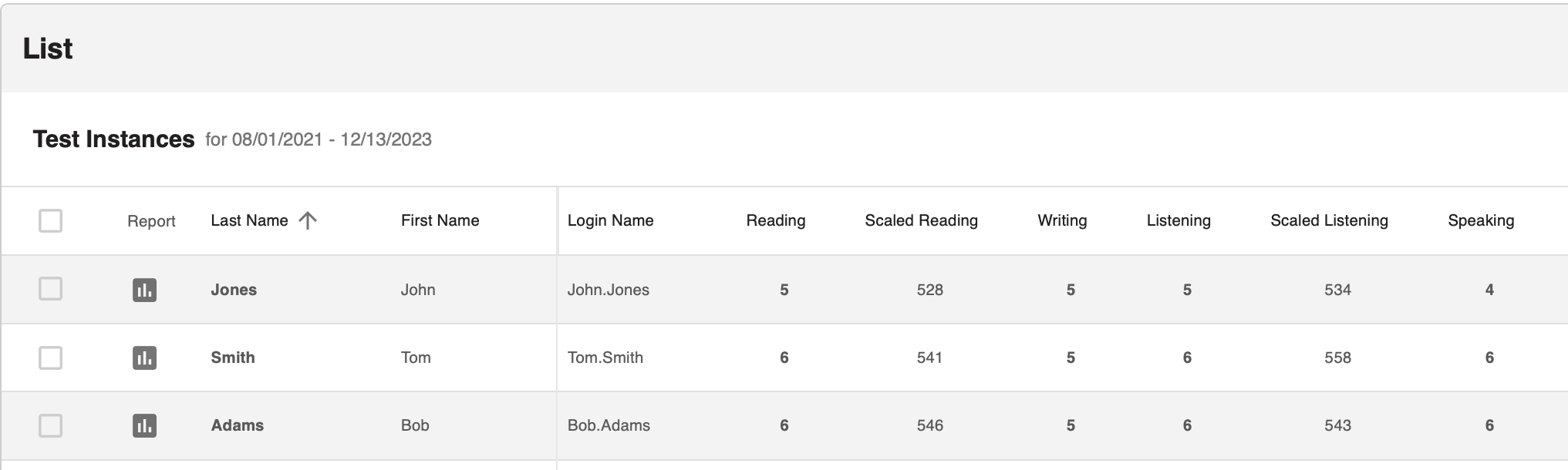
For the Reading and Listening sections of the test, you may also see a Scaled Score to the right of the level. These can be used to track test taker progress within the levels. For more information on Scaled Scores see our Scaled Scores Guide.
Writing and Speaking Section Scores
Writing and Speaking scores are typically available within 25 business days after the full test has been completed. Scores may be available sooner, so check the test results screen periodically to check rating progress. Click on any score to see additional details or to access Writing and Speaking responses.
Accessing Writing and Speaking Responses
You’re able to see the written responses and listen to recorded audio responses that test takers submit. For the Writing and Speaking sections, click on the section score to bring up the section details.
Click on Response 1, Response 2, etc to access the test taker’s actual response for each specific task. This can also be helpful for understanding why responses were scored Zero or Not Rateable.
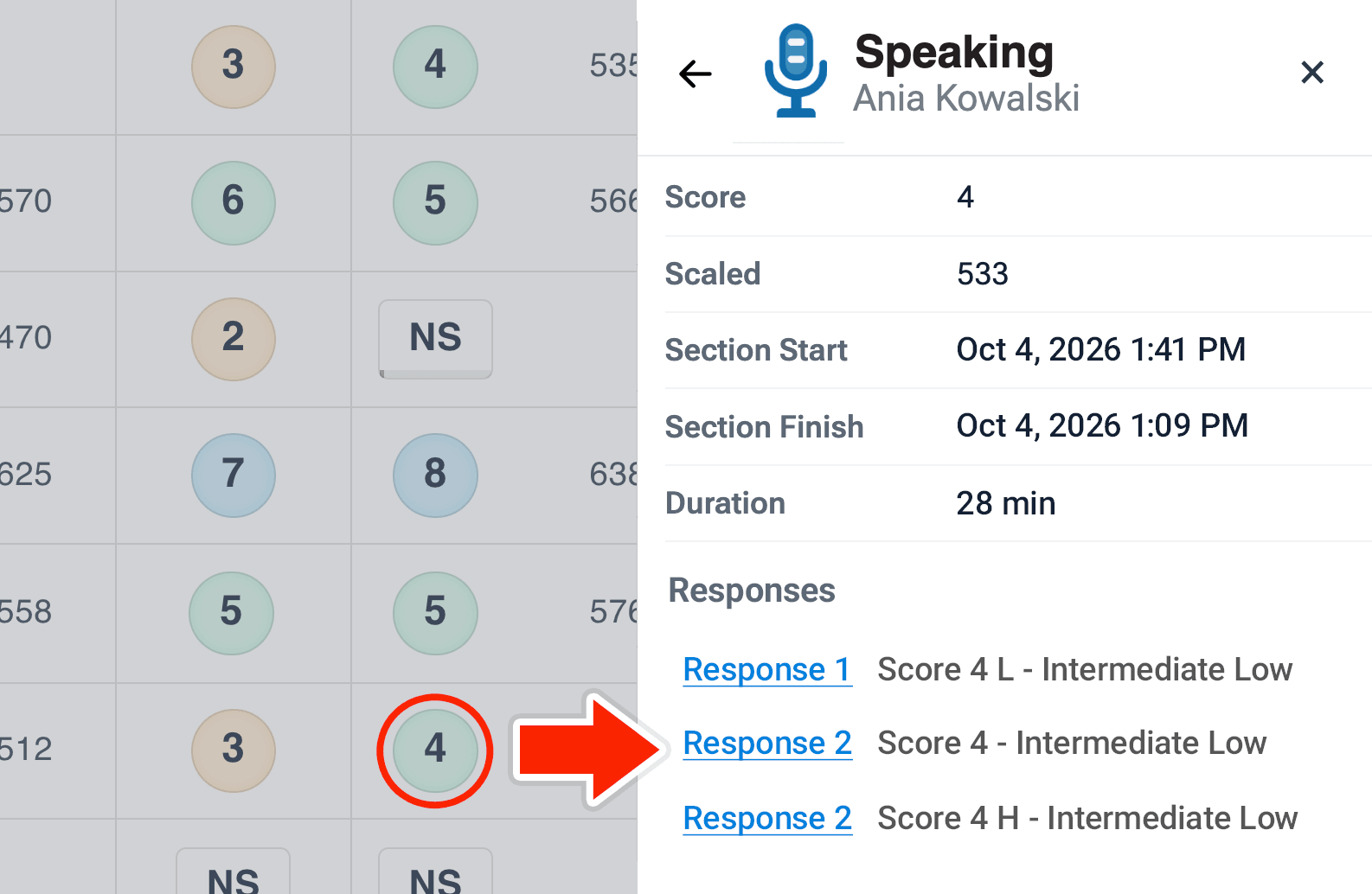
High (H) and Low (L) Indicators for Individual Responses
High (H) and Low (L) indicators for individual responses are included in the sidebar of the report. This assists testing coordinators and teachers in better understanding the range of responses that can occur in each sub-level for an individual test taker. These indicators serve a similar purpose as the Scaled Scores for Reading and Listening and can be used for research and review purposes.
Composite Score
Composite Scores are available when all sections have been completed, scored, and rated. Composite Score represents a test taker’s scores added together and divided by the total number of sections assessed.
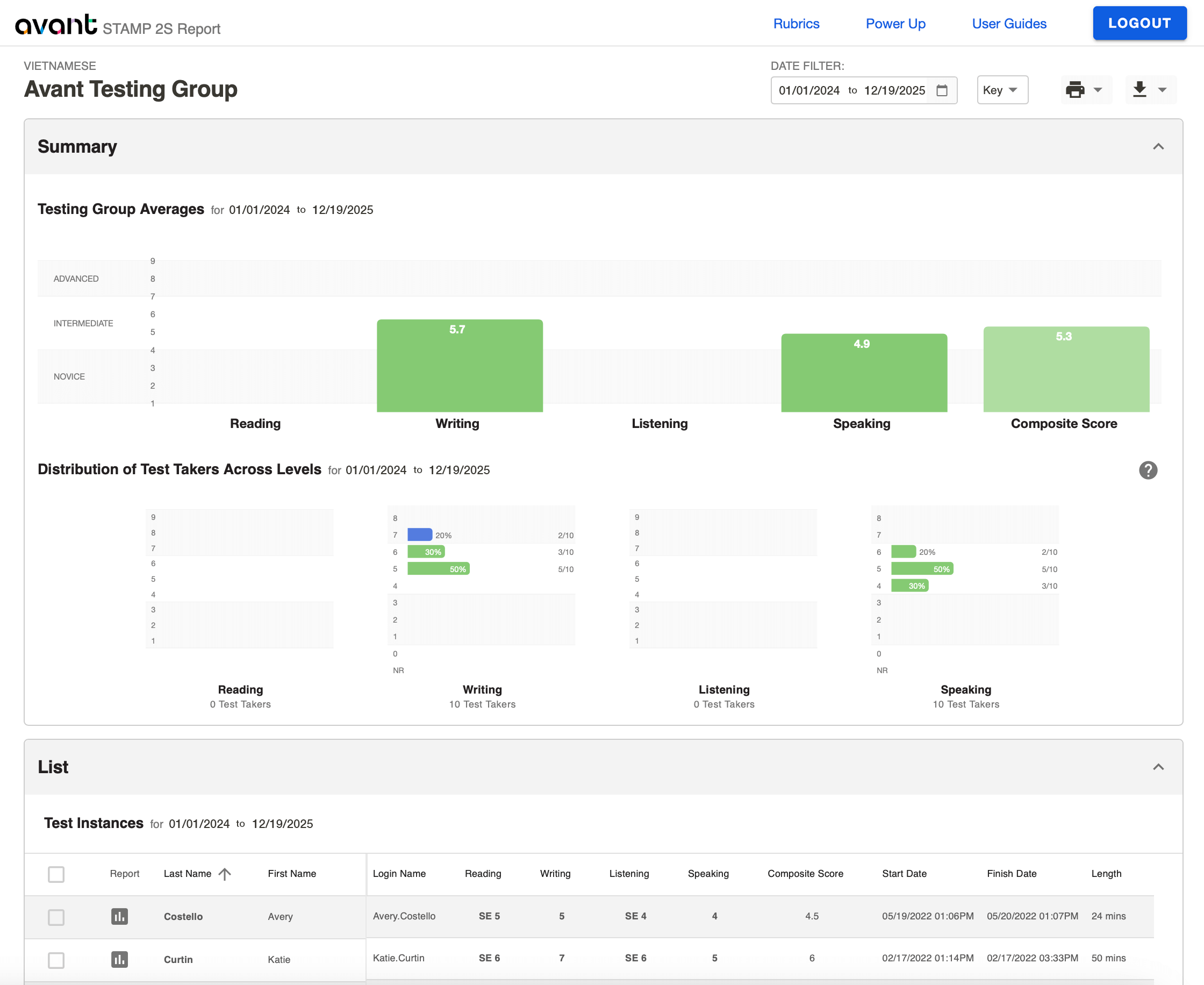
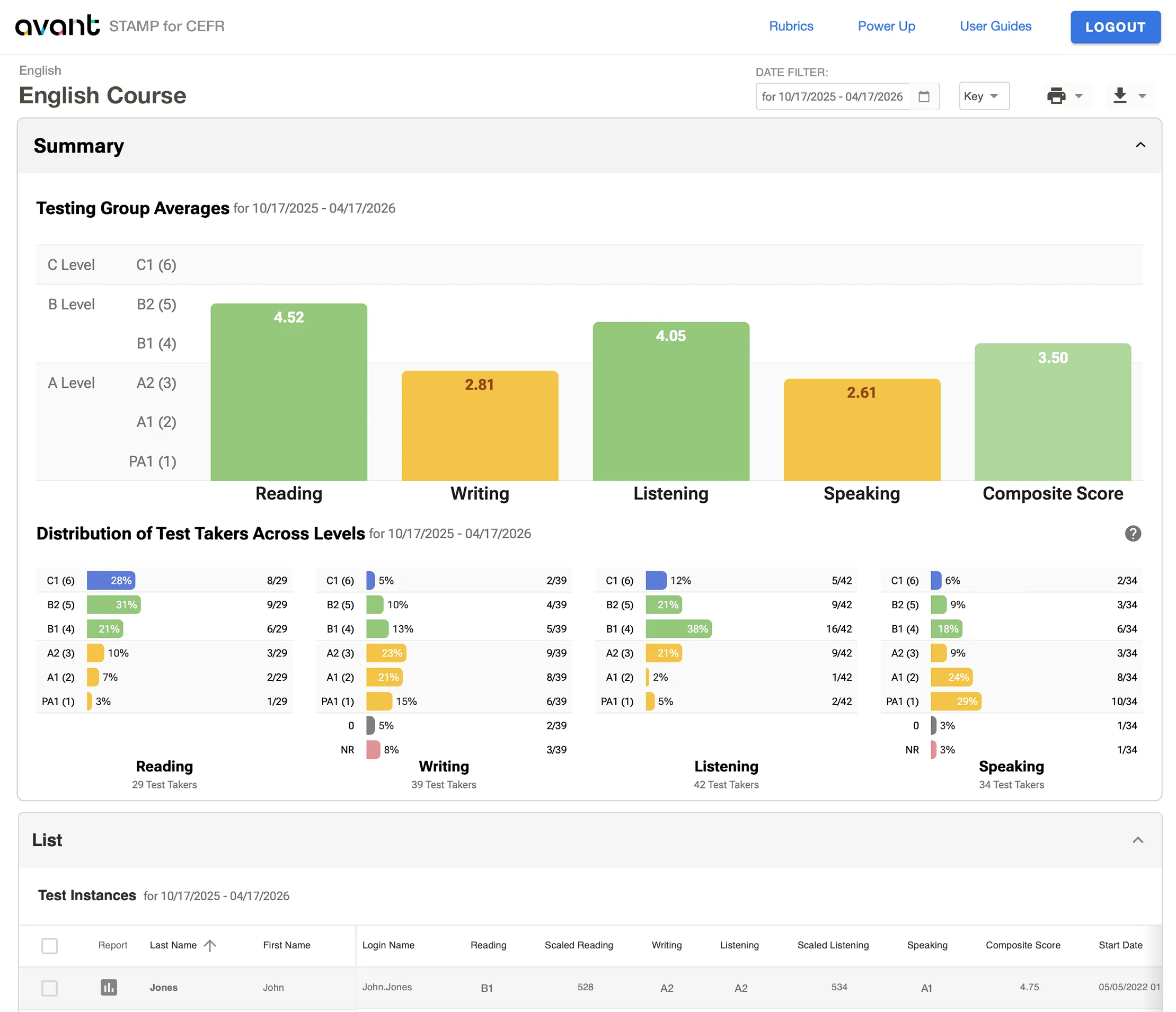
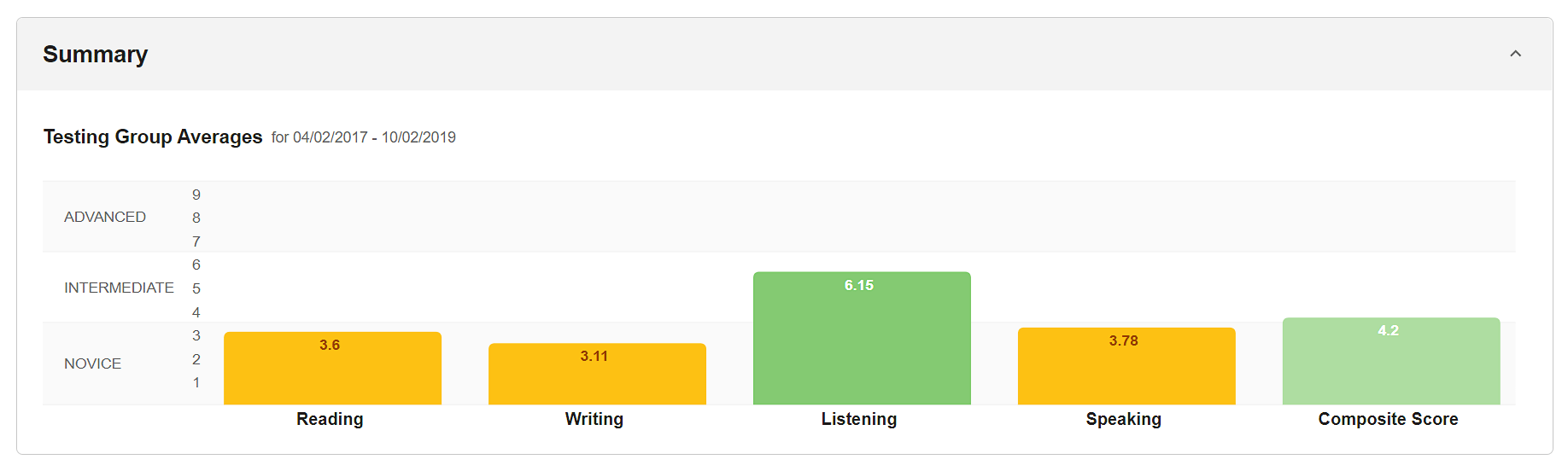
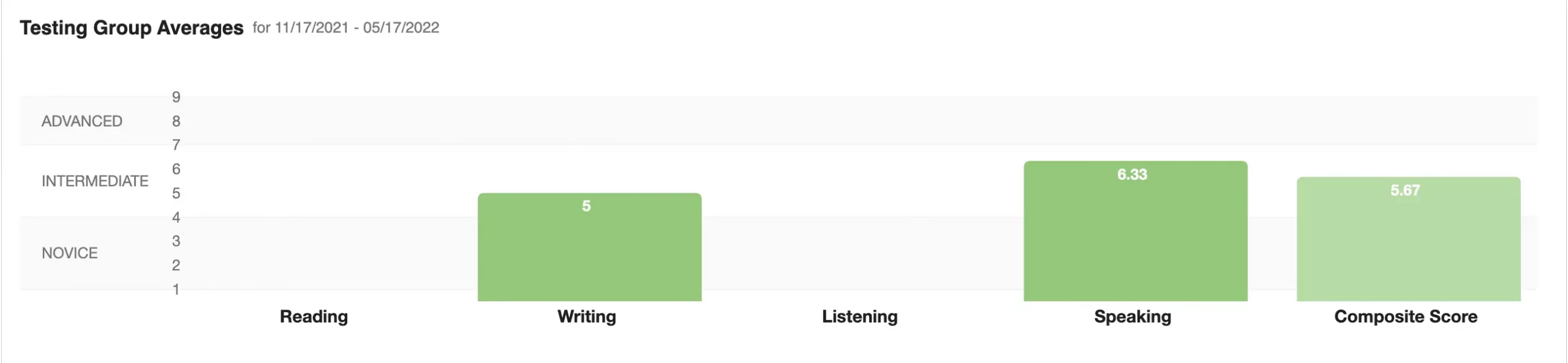
Testing Group Averages
The number in the graph for a specific skill represents all test taker scores divided by the number of test takers with a score for the specific skill. The number in the graph for the Composite Score represents all test takers’ Composite Scores added together and divided by the total number of test takers.
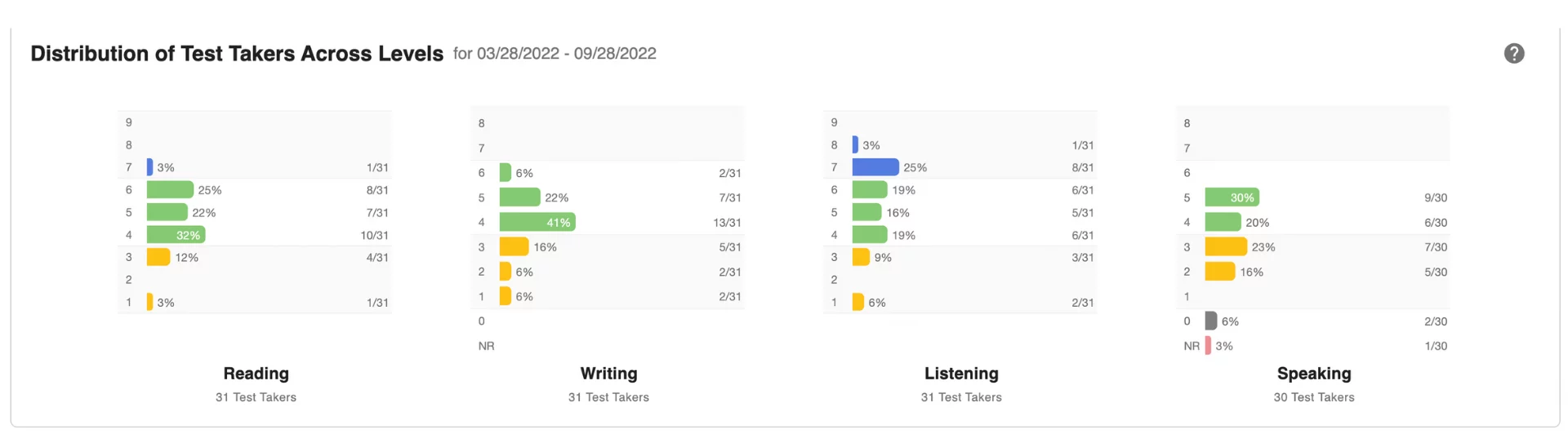
Distribution of Test Takers Across Levels
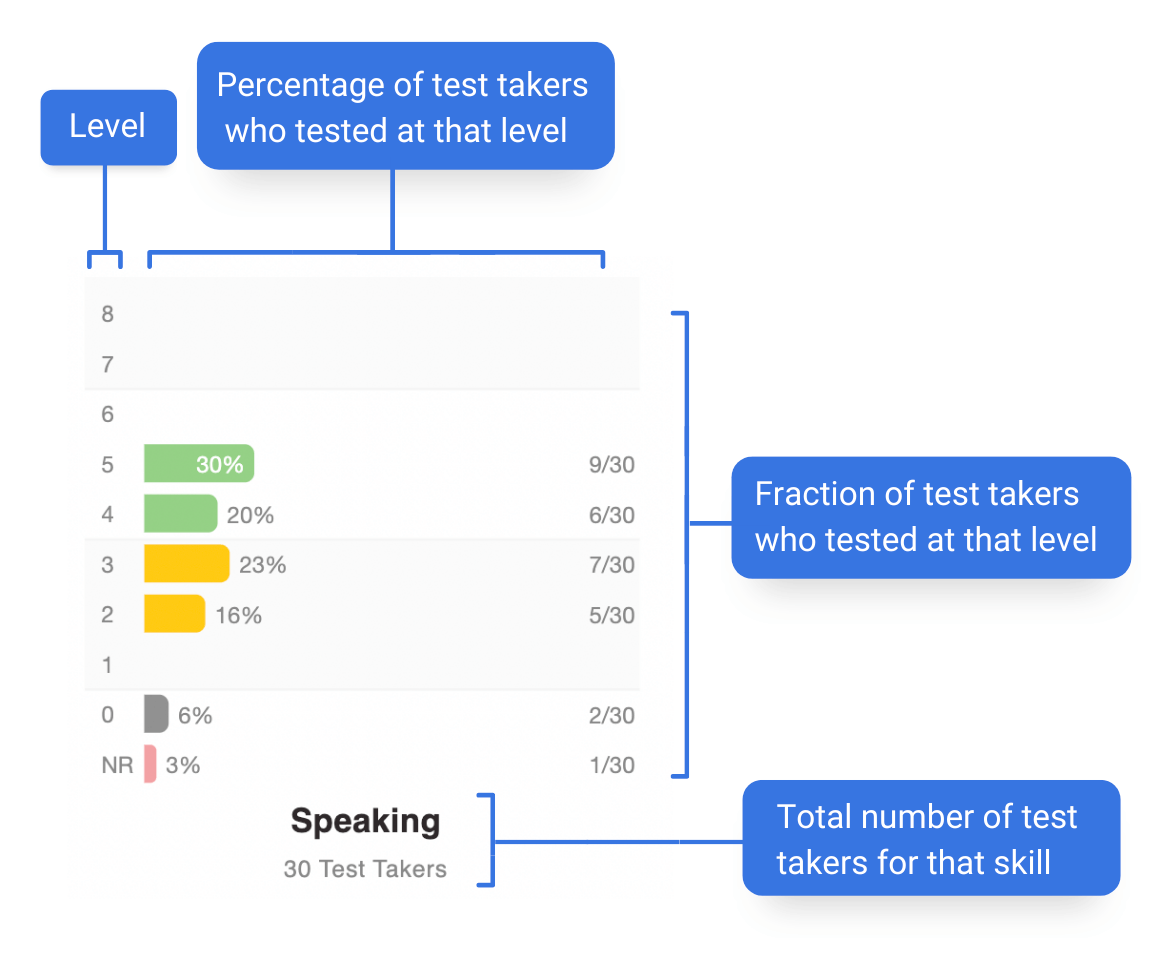
The bar graphs show what percentage of test takers are scoring at each specific level for each skill of the test: Reading, Writing, Listening, and Speaking.
The bar graphs show what percentage of test takers are scoring at each specific level for Writing and Speaking. Reading and Listening graphs will have no data.
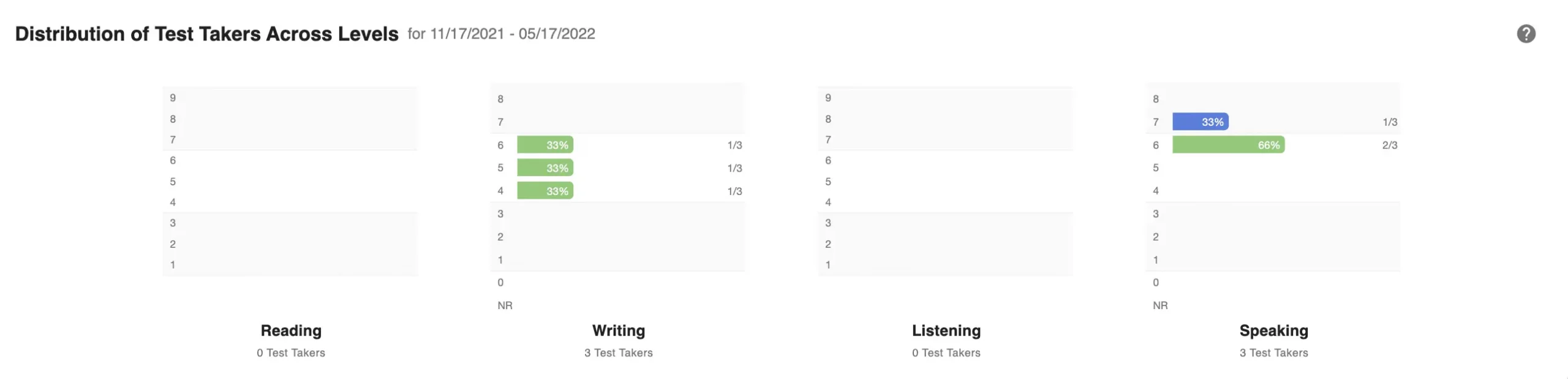
Reading and Listening graphs will have no results but, will still have a placeholder.
Индивидуальные отчеты
Access and download Individual Reports for test takers. For best results, wait until all testing and rating is complete.
How to access Individual Reports for one or all test takers
Create Individual Report for a specific test taker:
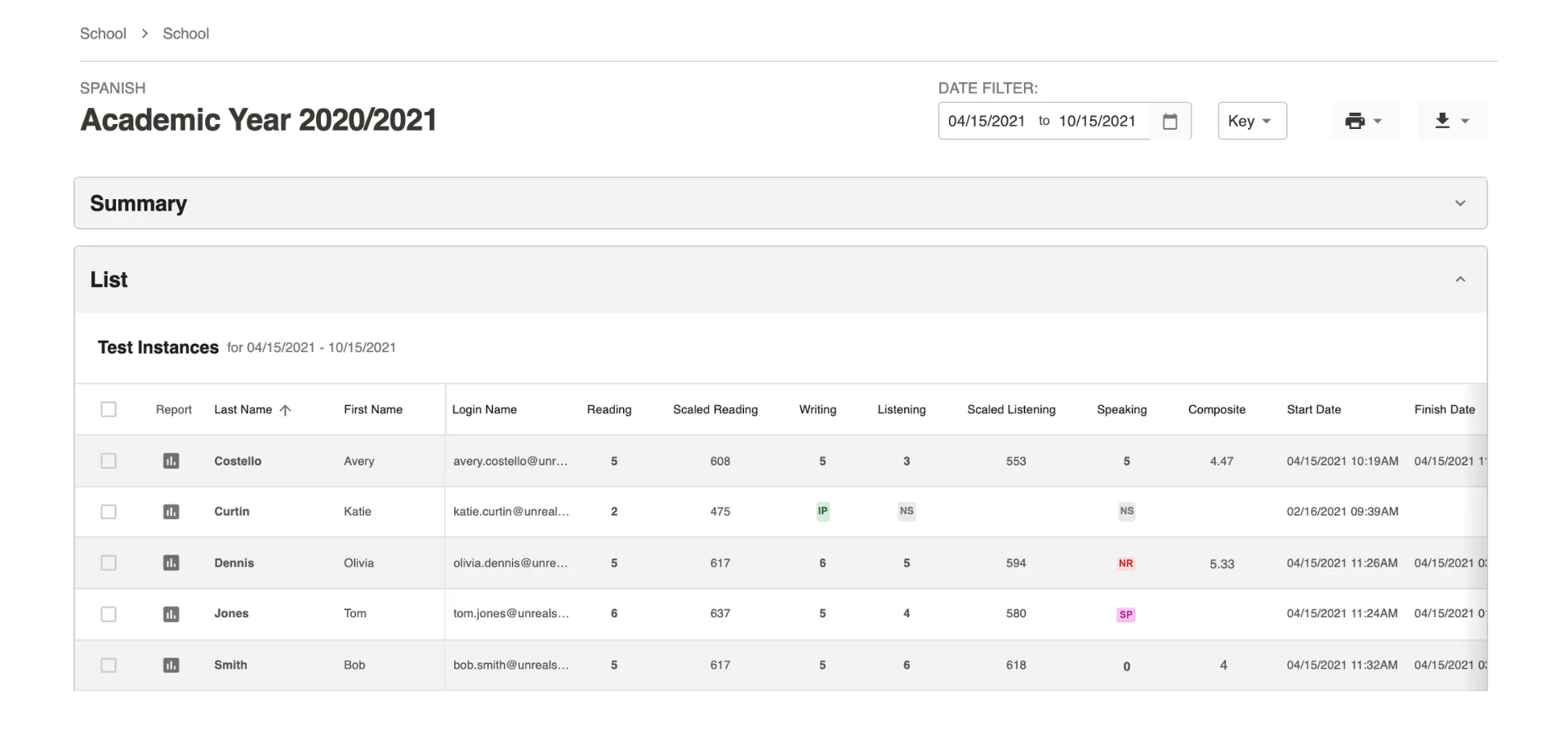
- Click on the Report icon
 to access the Individual Report for a test taker.
 - Click on the Printer icon
 to print out the Individual Report. You will see a printer dialog box within your browser.
- You can create a PDF version of the report if your printer selection includes a PDF writer.
- You can print out an Individual Report on one page by clicking “More Settings” and adjusting the Scale.
Create Individual Reports for multiple or all test takers on the list:
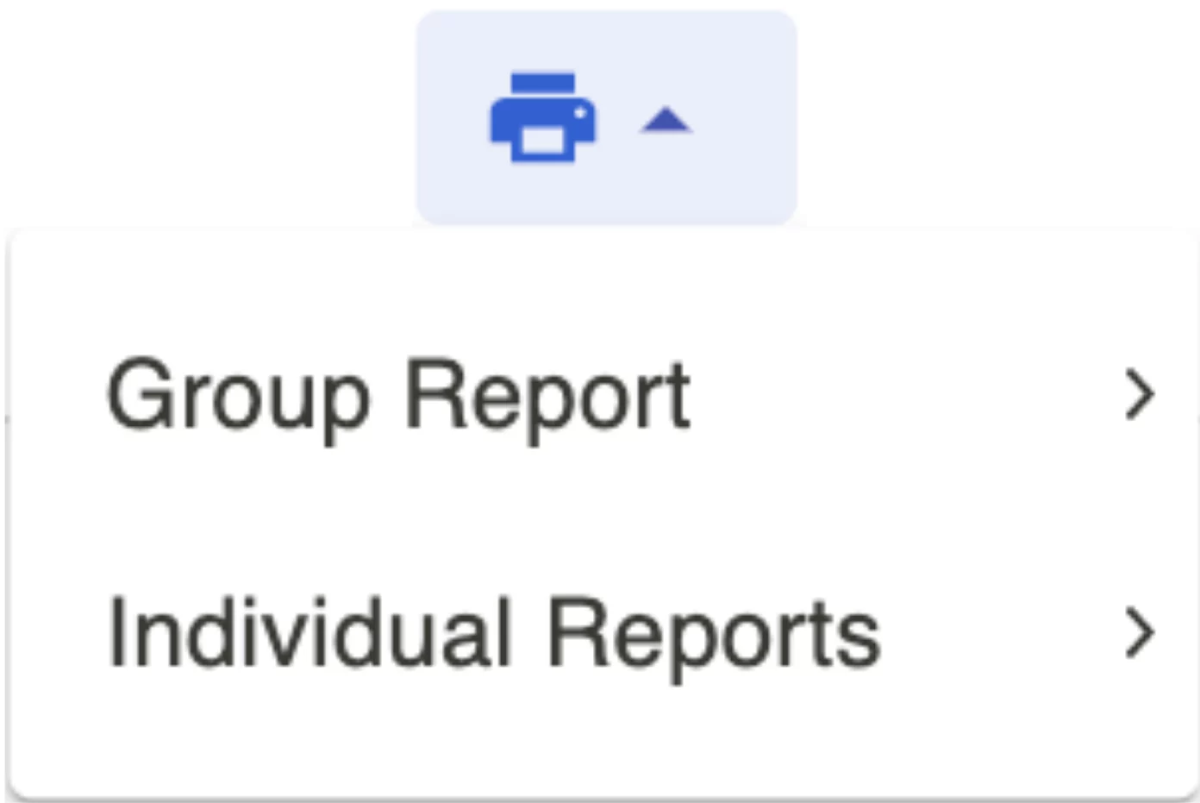
- Check the box to the left of the test takers for which you wish to generate reports.
- Click on the Printer icon, then click on Индивидуальные отчеты and then click on either All or Selected.
- Click on the Printer icon on the report.
PDF Splitter Tool
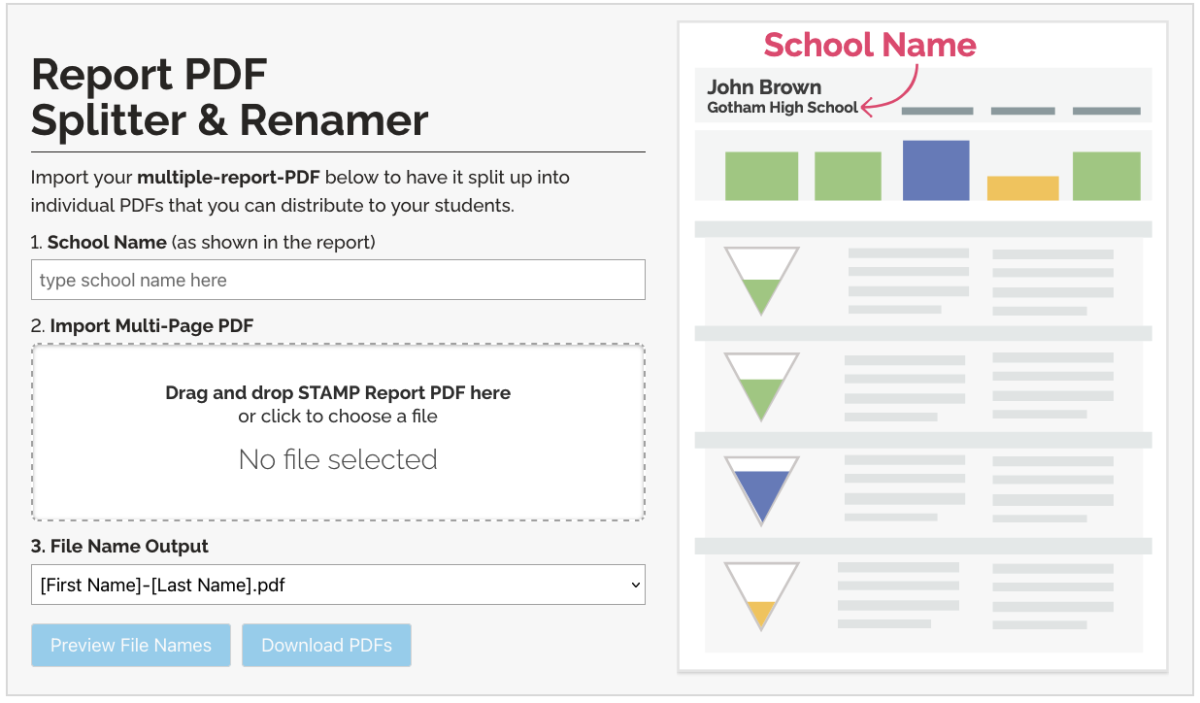
When downloading multiple test taker reports, it creates a single PDF with all the Individual Reports.
Some schools prefer to digitally distribute individual PDFs directly to their students. To make this easier, use our PDF Splitter Tool to automatically split the PDF into multiple files based on the test taker’s name (i.e. “Joe-Brown.pdf“, “Jane-Smith.pdf“, etc.)
Individual Report Examples
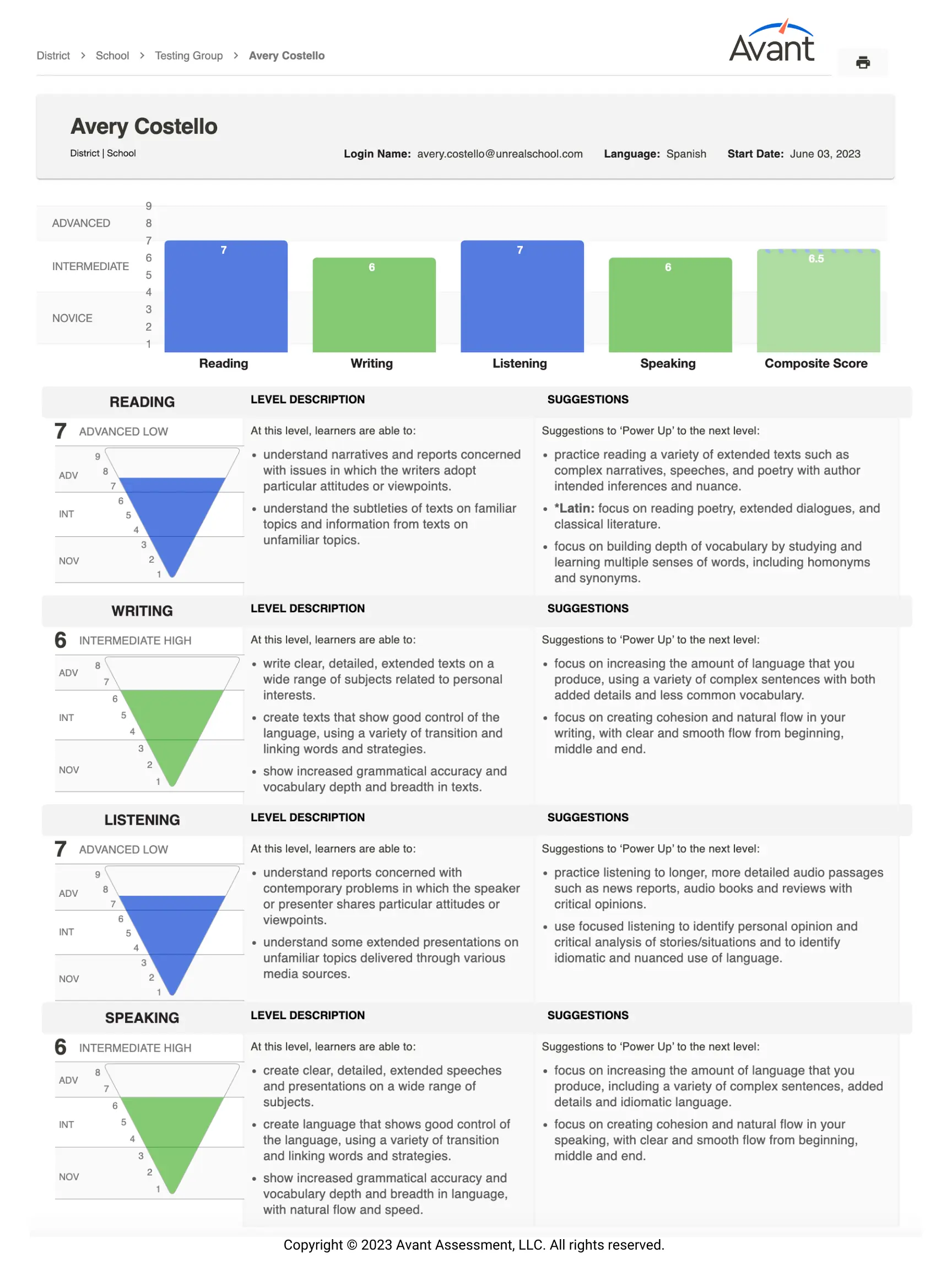
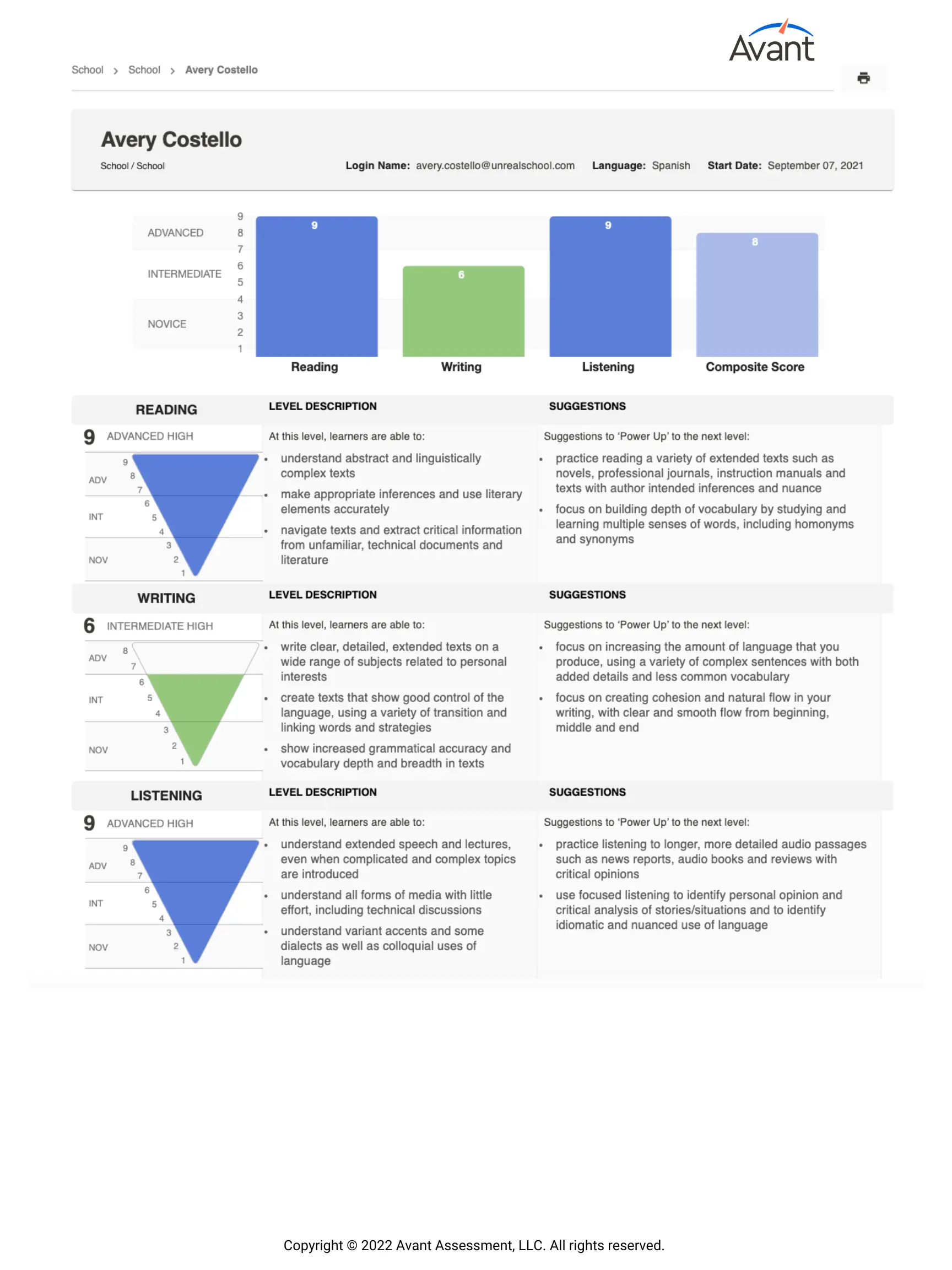
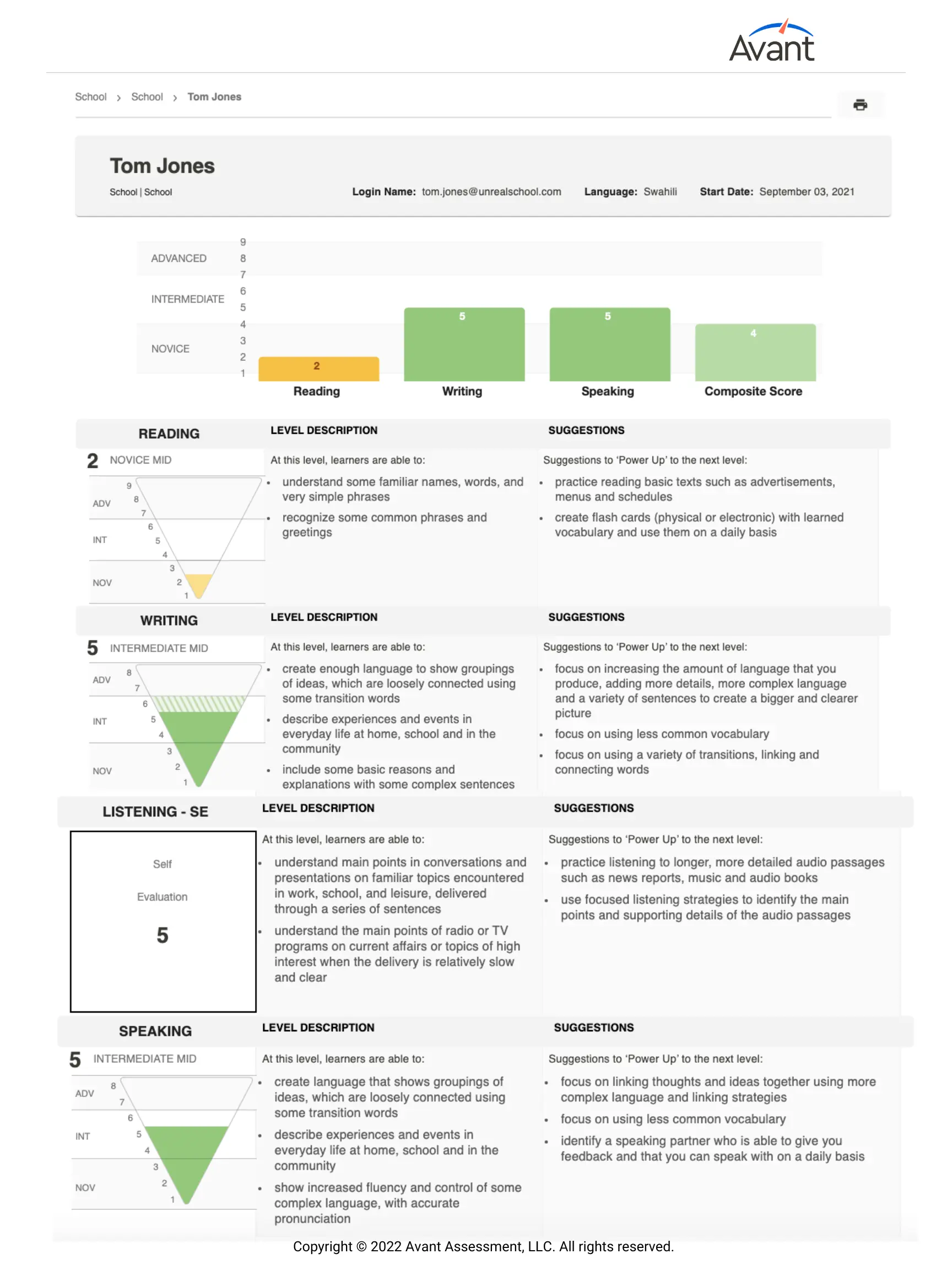
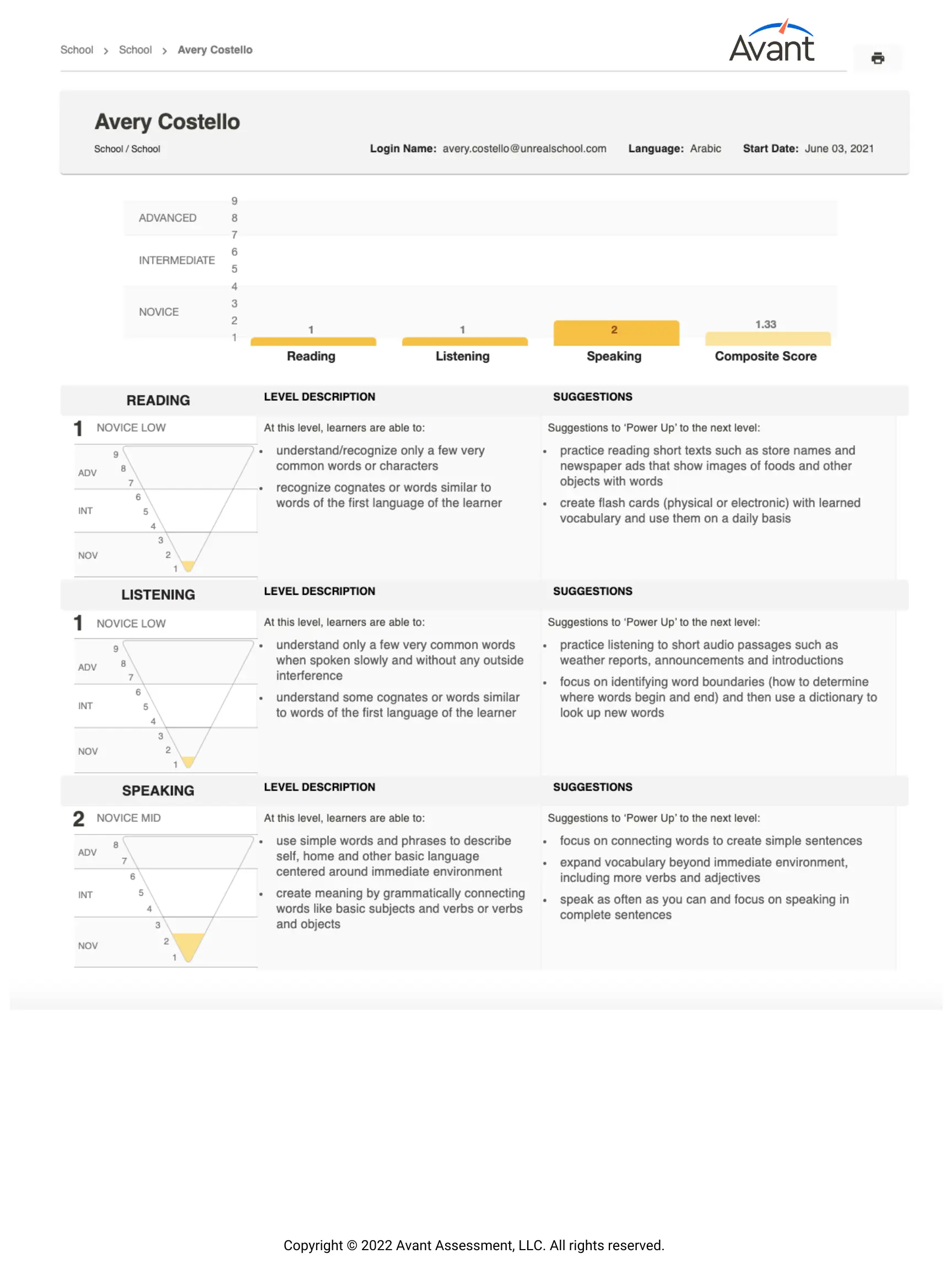
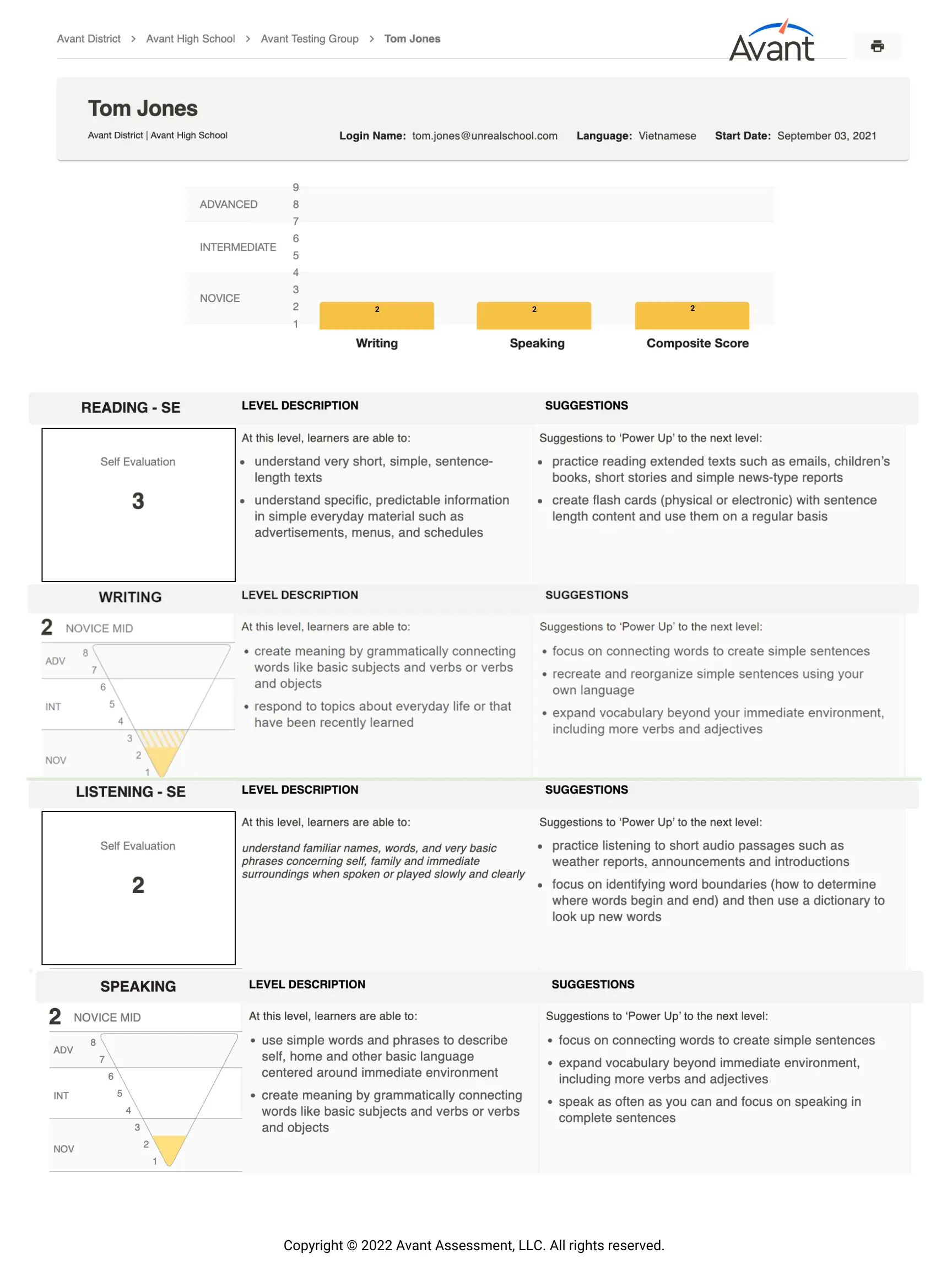
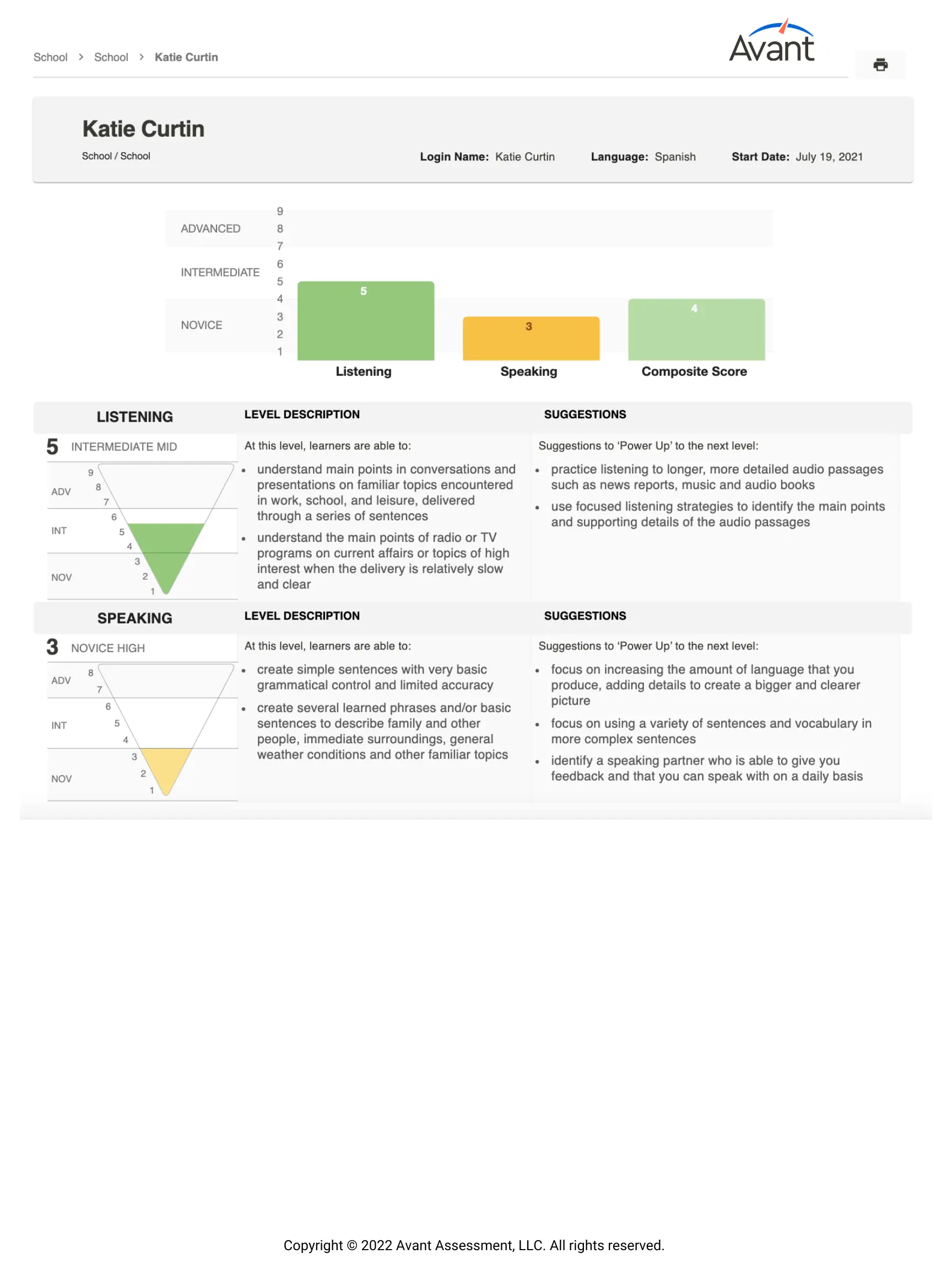
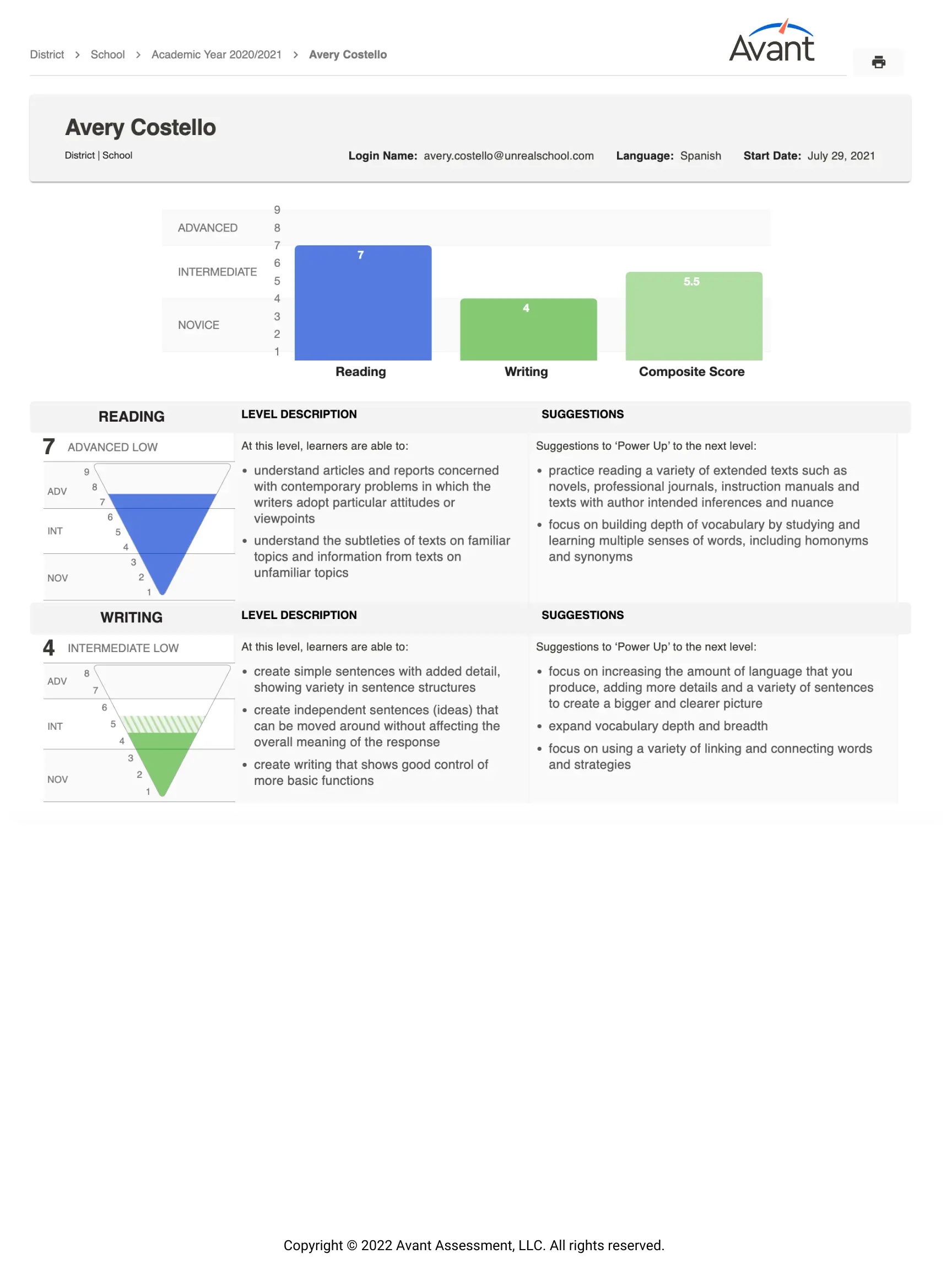
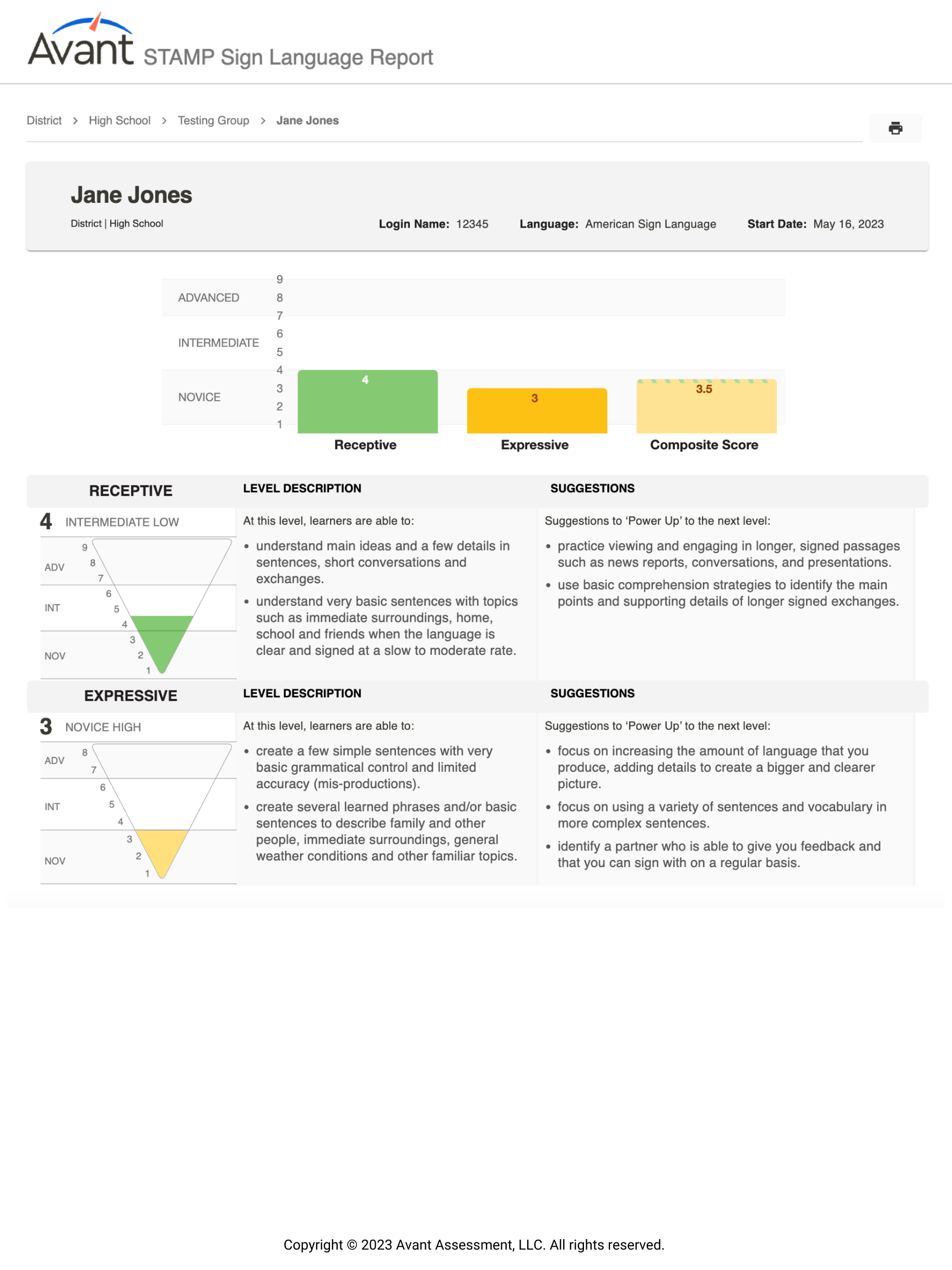
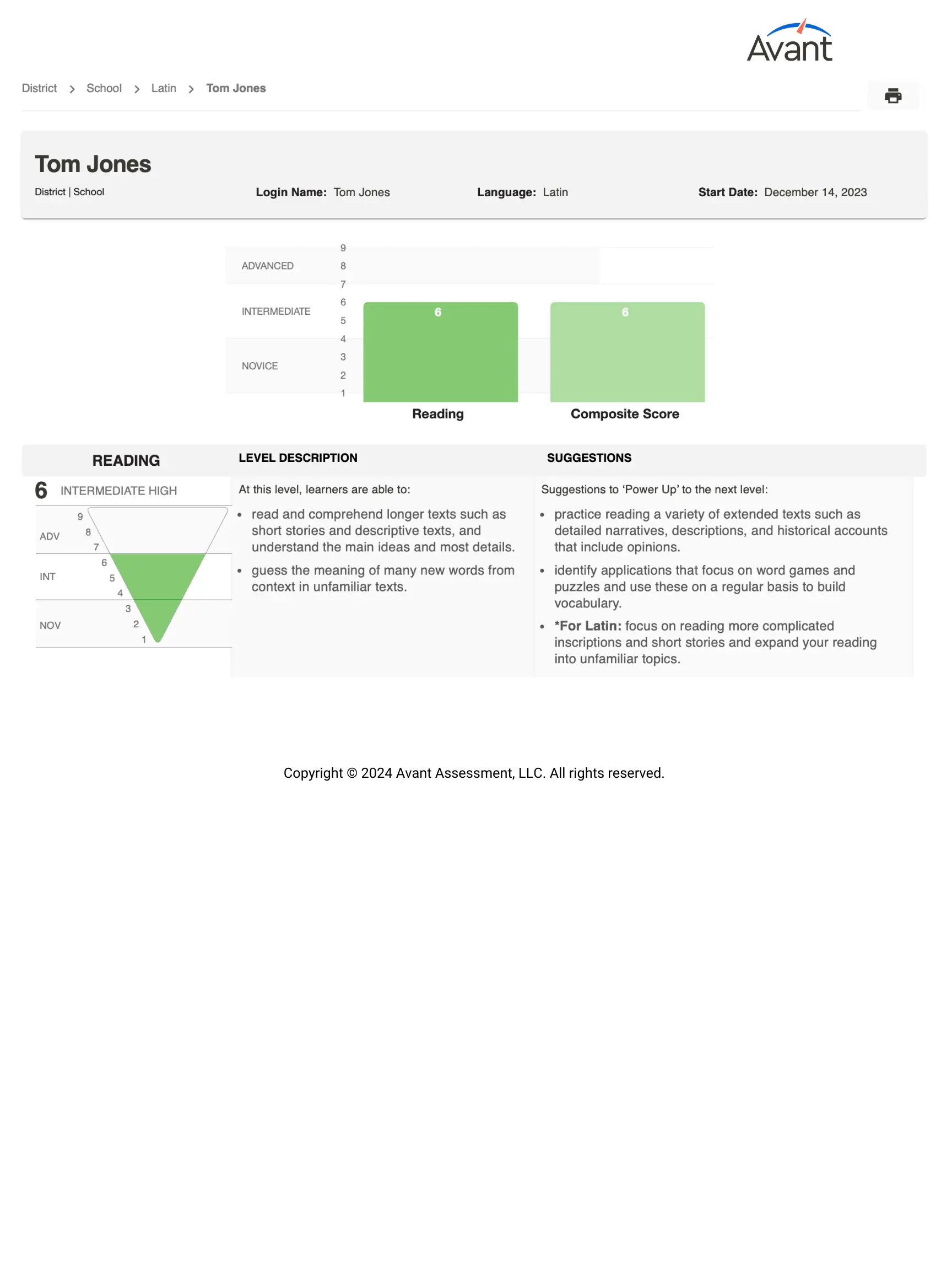
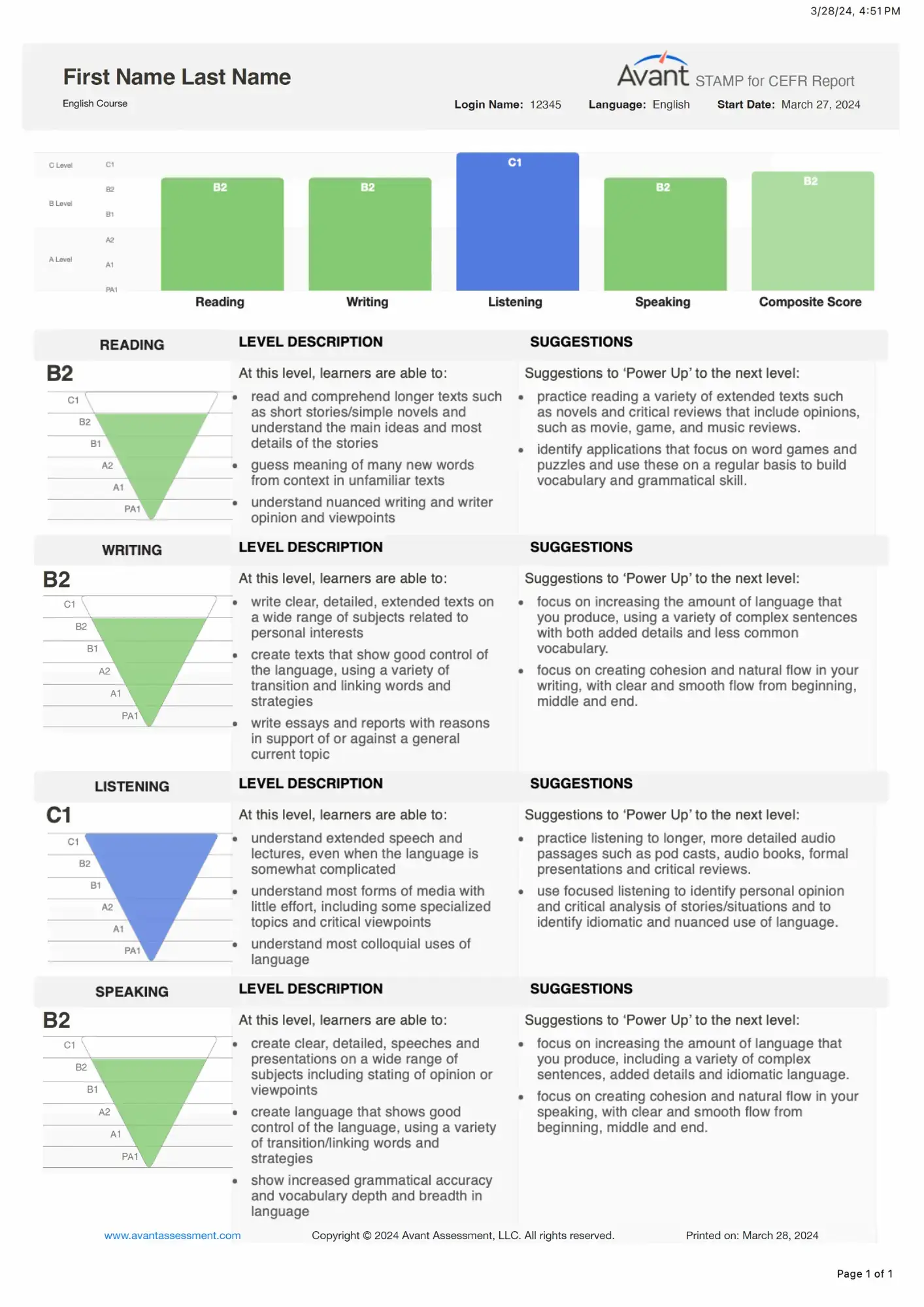
Individual Reports include the following sections and information (based on the chosen combination):
- Reading Section score (generated by Avant)
- Writing Section score (rated by Avant)
- Listening Section score (generated by Avant)
- Speaking Section score (rated by Avant)
- Composite Score
- Level Descriptions
- Suggestions to ‘Power Up’ to the next level
Each test taker’s report has a scoring graphic for each section of the test. It can be an inverted pyramid that has a filled area depicting the level attained, or just a score generated by Avant for self-evaluated Reading and Listening Sections.
Reading and Listening sections will show a scoring graphic once a test taker completes each section.
Writing and Speaking sections will show a scoring graphic once the rating is completed by Avant.
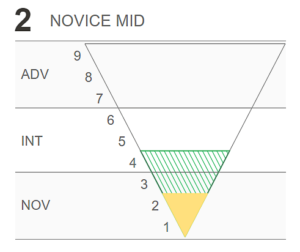
For the Writing and Speaking sections of the test, an additional shaded area will appear if the test taker has one response that is rated at a higher level. This serves as an alert that the test taker is operating across a range of proficiency levels with this skill. This situation is quite common for test takers in the Novice and Intermediate ranges, mostly due to limited topic exposure and control.
Level Description field (the text to the right of scores) provides explanation of what test takers at each level are generally able to do.
Suggestions field provides Power Up suggestions to help test takers attain higher levels (see Avant Power Up Guide for more information).
If desired, the Individual Report can be distributed to test takers or parents, along with the Avant STAMP Benchmark & Rubric Guide
Download Results Summary
Access and download test results. For best results, wait until all testing and rating is complete.
How to Download Excel (.CSV) File

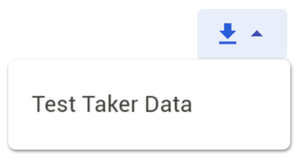
- Click the download button and allow a few moments for the download to load and click on Test Taker Data when the link appears.
- Follow the instructions on your screen, which may vary depending on your computer setup.
Excel (.CSV) File Example
The Test Taker Data download feature creates an Excel (.csv) file that includes test taker results along with the profile information and other test-taking data. From the spreadsheet you can create a customized report with just the fields you want, and sort it as needed.
Information in the Excel (.csv) file falls into three groups:
Test Taker Login and Profile Information
- Test Code, Login Name, First Name, Last Name, Grade (optional), Test Taker ID, Test Taker Email (optional). Learn more about the Test Taker Profile
Testing Group Information
- Test Code, State, District, School, Testing Group Name & Language.
Test Results/Test Status
- Reading Score, Reading Scaled Score, Reading Length of Time, Writing Score, Writing Length of Time, Listening Score, Listening Scaled Score, Listening Length of Time, Speaking Score, Speaking Length of Time, Test Status, Composite Score, Start Time, Test Length & Finish Time, Scheduled Status (for AvantProctor testing), Test Access Link (for AvantProctor testing), Badge Eligible (for Avant Digital Badge)
Retakes and Resets
Under certain circumstances, retesting and resetting portions of the test may be permitted. Please refer to our Request a Retake page for more information on our policy and how to make the request.
More STAMP Guides